
MuleSoft IDP: Tutorial, Best Practices & Examples
MuleSoft Intelligent Document Processing (IDP) enables you to read structured or unstructured data from documents and convert that data into a structured response using AI capabilities. It helps automate repetitive tasks, improve accuracy, and speed up operations.
This article explains how IDP works, from creating document actions to integrating them in Mule applications, along with tips, best practices, and troubleshooting guidance.
Summary of key MuleSoft IDP concepts
{{banner-large-graph="/banners"}}
Overview of MuleSoft IDP
MuleSoft IDP is an AnyPoint Platform tool that enables organisations to submit documents in various formats (such as PDF, PNG, and JPEG), extract the unstructured data within them, and present it in a structured format. For example, suppose you want to extract data fields such as the invoice number, customer name, and invoice amount from a sales invoice PDF. You can use IDP to extract the fields and refine the results using IDP’s AI capabilities.
MuleSoft IDP enables you to expose document actions through APIs, which can be utilised to submit documents, extract data from unstructured documents, and retrieve the data in a structured format. The IDP APIs facilitate integration with other platforms, eliminating the need for external services. This enables organisations to utilise and extend IDP capabilities, reducing manual effort and improving processes.
MuleSoft IDP provides numerous benefits:
- Improved data accuracy and processing speed through AI-based extraction: IDP enhances the extraction process through AI capabilities that enable it to read, interpret, and validate documents more efficiently, thus eliminating manual processes that can be time-consuming and prone to errors. IDP can also increase data accuracy with automated checks and continuous refinement.
- Reduced manual intervention and operational costs: As processes are automated, operational costs are improved because manual intervention is no longer required. Once the system is trained, it can handle large volumes of data without requiring constant supervision.
- Reusable document actions across multiple applications: Using document actions, MuleSoft IDP allows you to create assets that can be reused across various workflows. This also allows seamless integration with other platforms, making it accessible to already existing business processes.
- Centralized management, monitoring, and governance via the AnyPoint Platform: The AnyPoint Platform provides a single place to manage APIs, integrations, and IDP processes, making it easier to manage everything in one location. You can monitor performance, enforce security policies, and maintain compliance under one dashboard.
IDP components
IDP Console
The AnyPoint platform provides an interface for creating and managing document processing workflows. IDP users can create and publish document actions without writing any code by using the graphical interface to define the fields to extract.
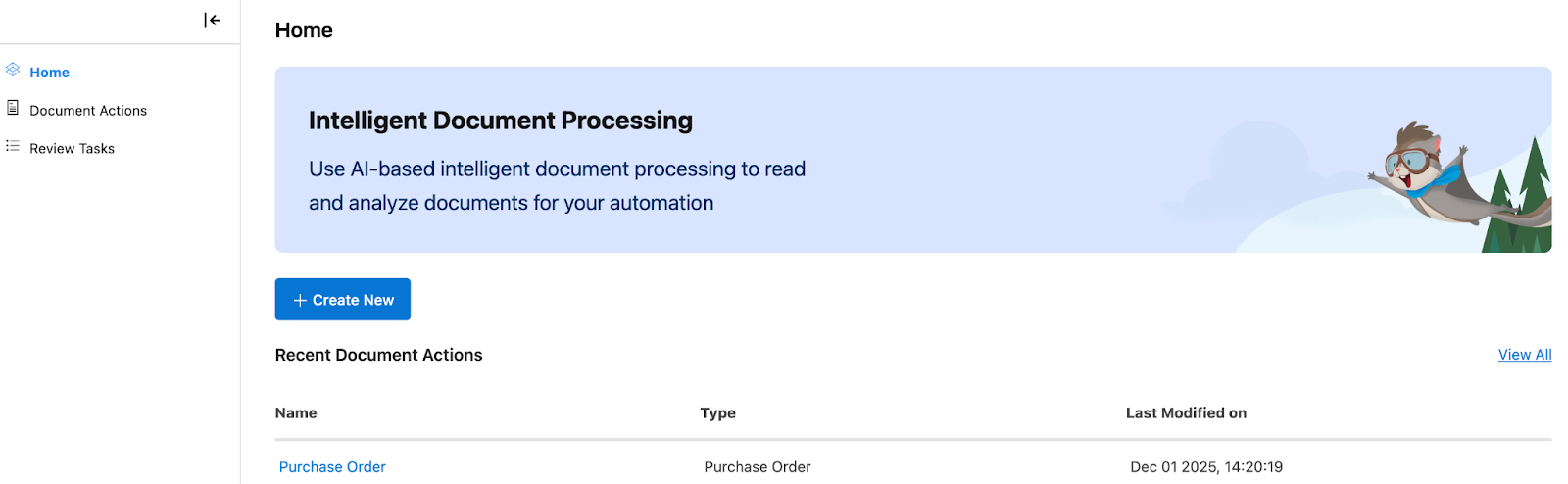
The IDP interface accelerates the setup of document processing workflows and reduces any dependency on technical resources.
AI models
The AI models used by MuleSoft IDP are pretrained to recognise and extract data from various types of documents, including invoices, receipts, and contracts. This reduces the need to custom-train models for document processing and the effort this requires, thereby speeding up the development-to-production timeline.
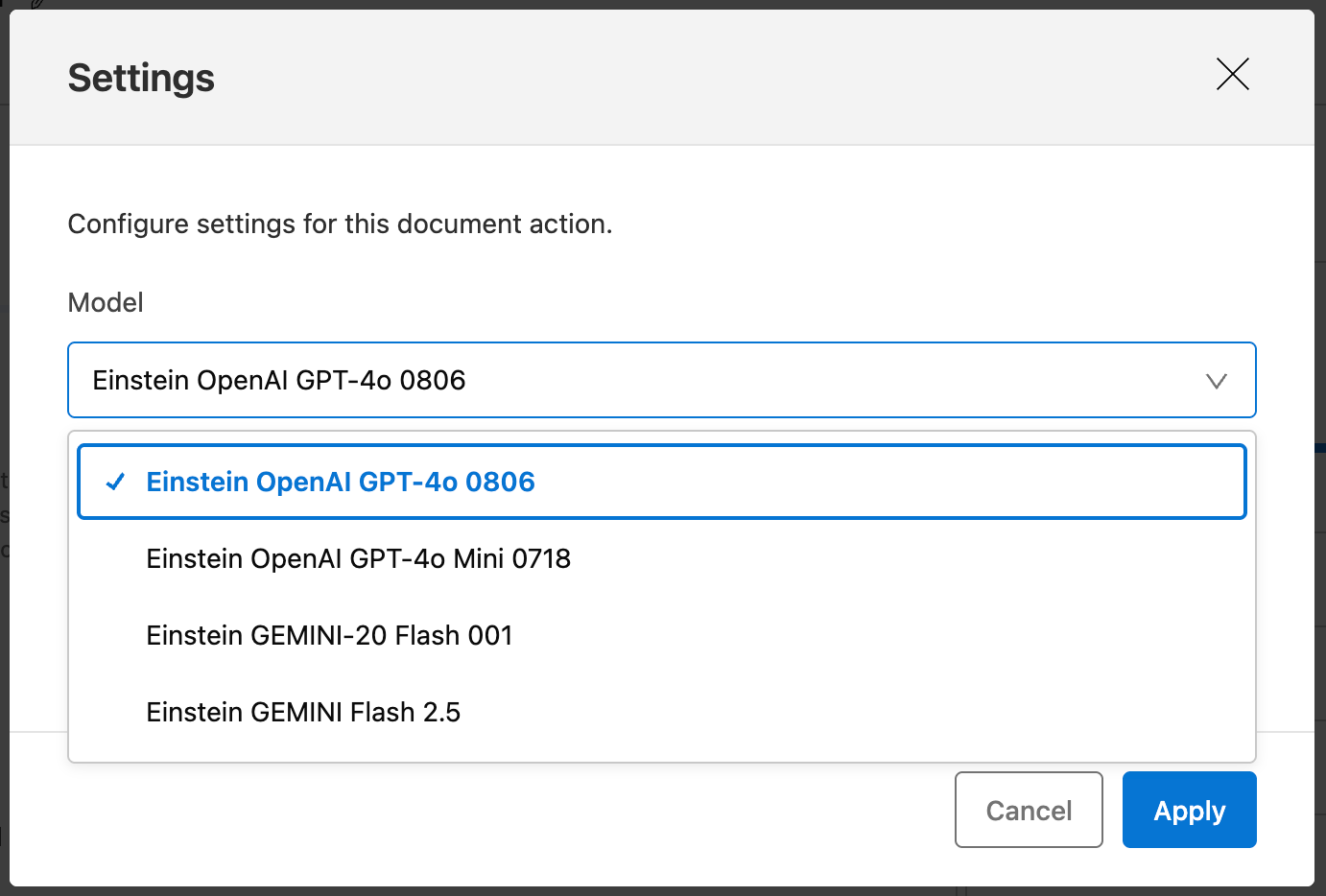
Here is a list of the AI models currently available for document parsing in IDP:
- Einstein OpenAI GPT-4o 0806
- Einstein OpenAI GPT-4o Mini 0718
- Einstein GEMINI-20 Flash 001
- Einstein GEMINI Flash 2.5
Document actions
A document action is a workflow that processes a document step by step, utilising multiple AI engines to scan the document, filter out fields, and provide a clean and structured response in JSON format.
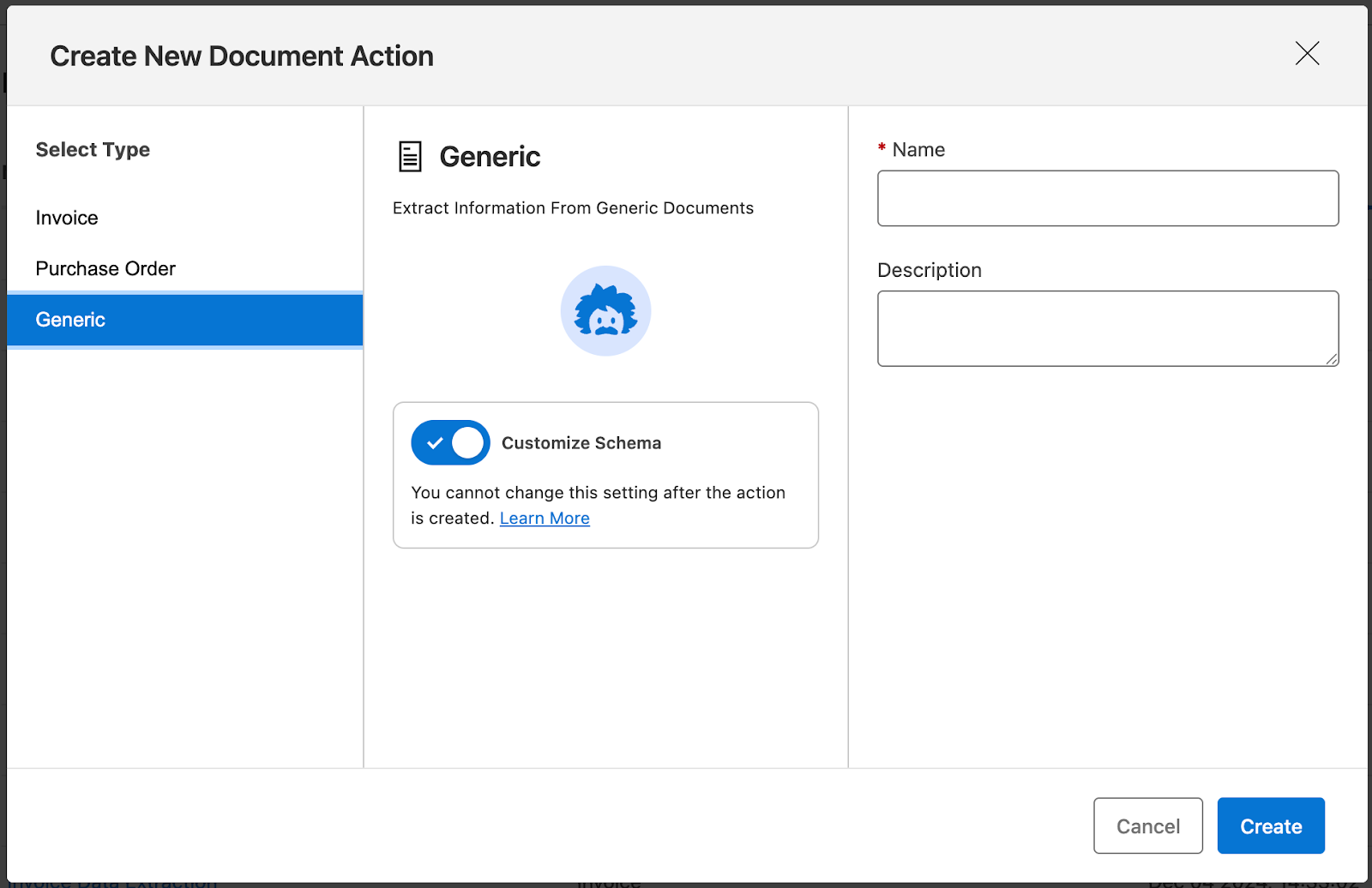
IDP provides the ability to use preconfigured templates such as “invoice” and “purchase order.” You can choose a template that aligns best with the document you are trying to process. Each template provides a set of expected fields to be extracted from the document. If the document you want to process is not present in the preconfigured list, IDP also includes a “generic” type that allows you to customise all the fields to be extracted.
Once the document action is set up, you can publish it to the Exchange to use it with other applications.
AnyPoint Exchange
The AnyPoint Exchange is the central repository where all published assets are stored. It allows teams to share these assets across multiple projects and maintain version control, ensuring consistency and reusability.
The Exchange stores all versions of the published assets. If you need to access specific versions of a document action using REST APIs, you can call that particular version by adding it to the API URL.
Mule IDP Connector API
The IDP Connector API acts as the link between Mule applications and the IDP service. It is used within Mule flows to call published document actions programmatically and return the extracted, structured data for further processing.
When a document action is published to the AnyPoint Exchange, it provides REST APIs to execute the document action, with the option to upload the document that needs to be parsed. Another API can be used to retrieve the results of the execution by using the execution ID from the first call.
Creating and publishing document actions
Creating a document action in AnyPoint
Before creating a document action in the AnyPoint platform, make sure you have one of the following necessary access permissions:
- Manage actions: This permission ensures that you have complete access to all IDP components.
- Build actions: This permission allows you to create, edit, publish, and execute document actions, as well as assign reviewers to those actions.

Let’s walk through the process of creating a document action:
- To create a document action, navigate to the IDP component in AnyPoint Platform and click Create New.
- IDP gives options for which type of document you want to process. Invoice and Purchase Order documents are preconfigured types available out of the box, complete with all necessary fields. If you need to process documents that are not preconfigured, you can select the Generic option and configure the fields according to your requirements.
To complete the process of creating your document action, select the type and provide the document action name to proceed.
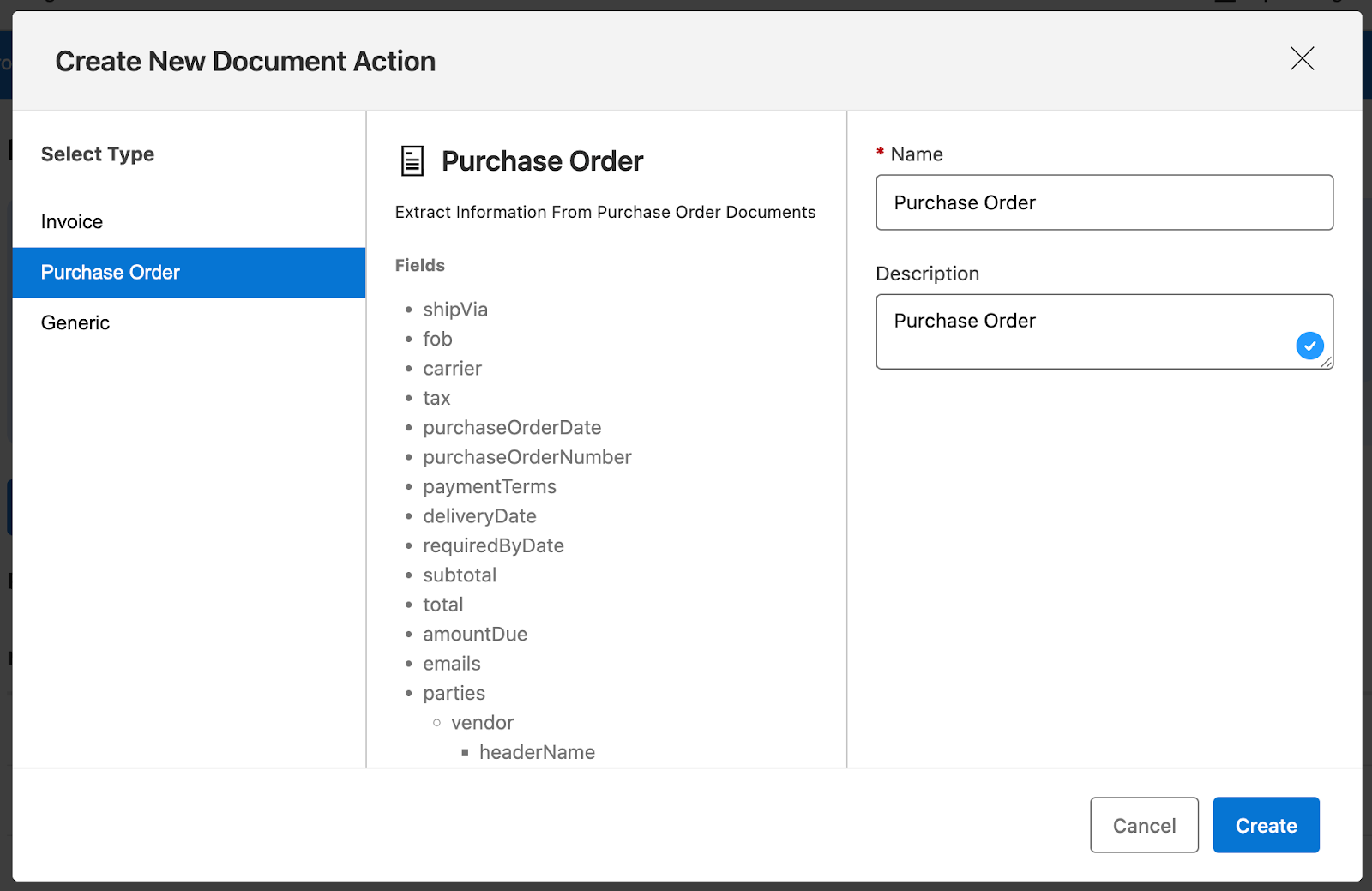
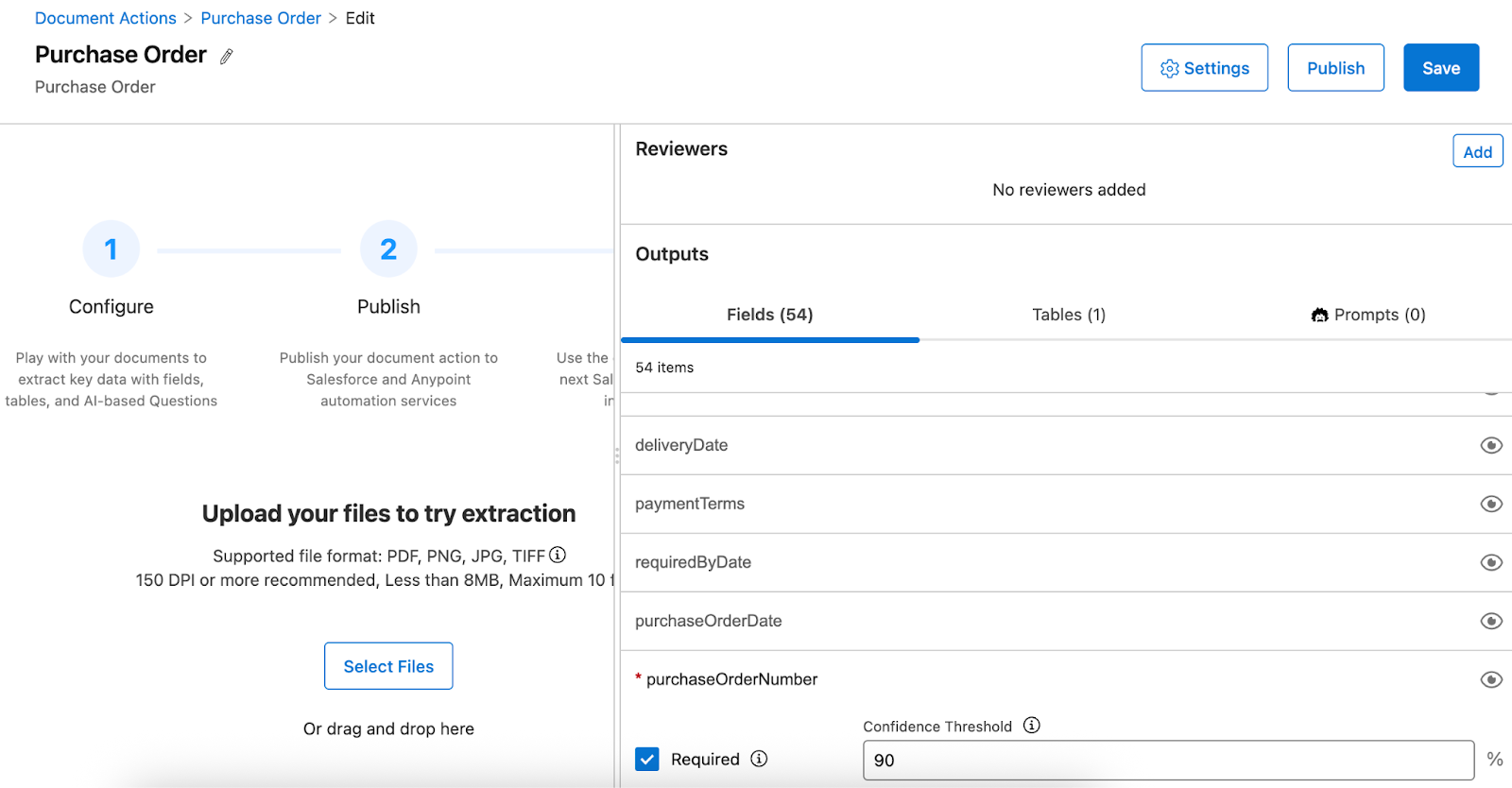
- Once the document action is created, you can configure each field, specifying whether it is required or not. If a field is required and not extracted in the process, the document is sent for manual review.
Every field also has a minimum required confidence threshold associated with it; if the returned confidence score value is below the defined threshold, the parsed document will be queued for human processing. You can adjust the confidence threshold for the fields as required.
For example, you might need the agent to have a high confidence score for specific vital fields, such as purchase order number and total amount. This adds a check to ensure that the parsed data is accurate. To streamline your response further, you can also hide fields in the outputs section by toggling their visibility.
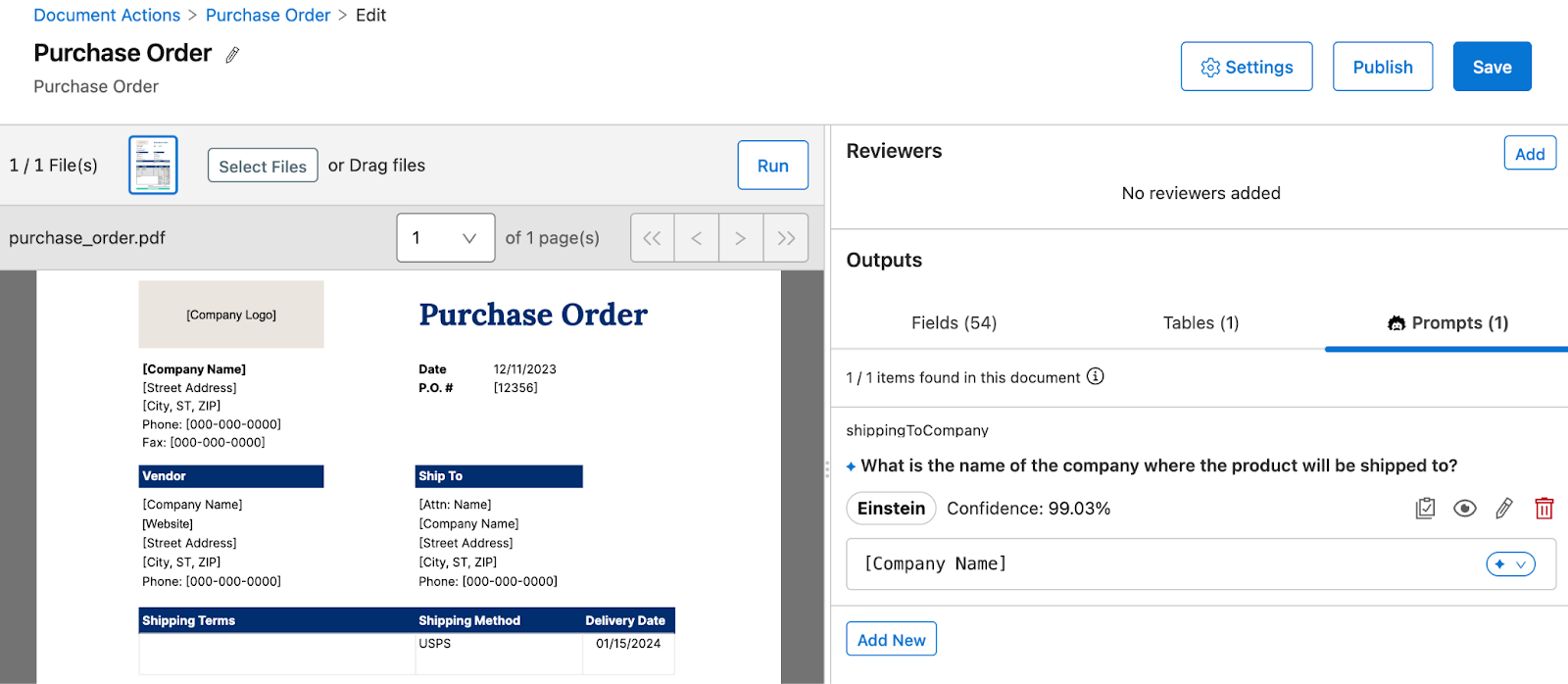
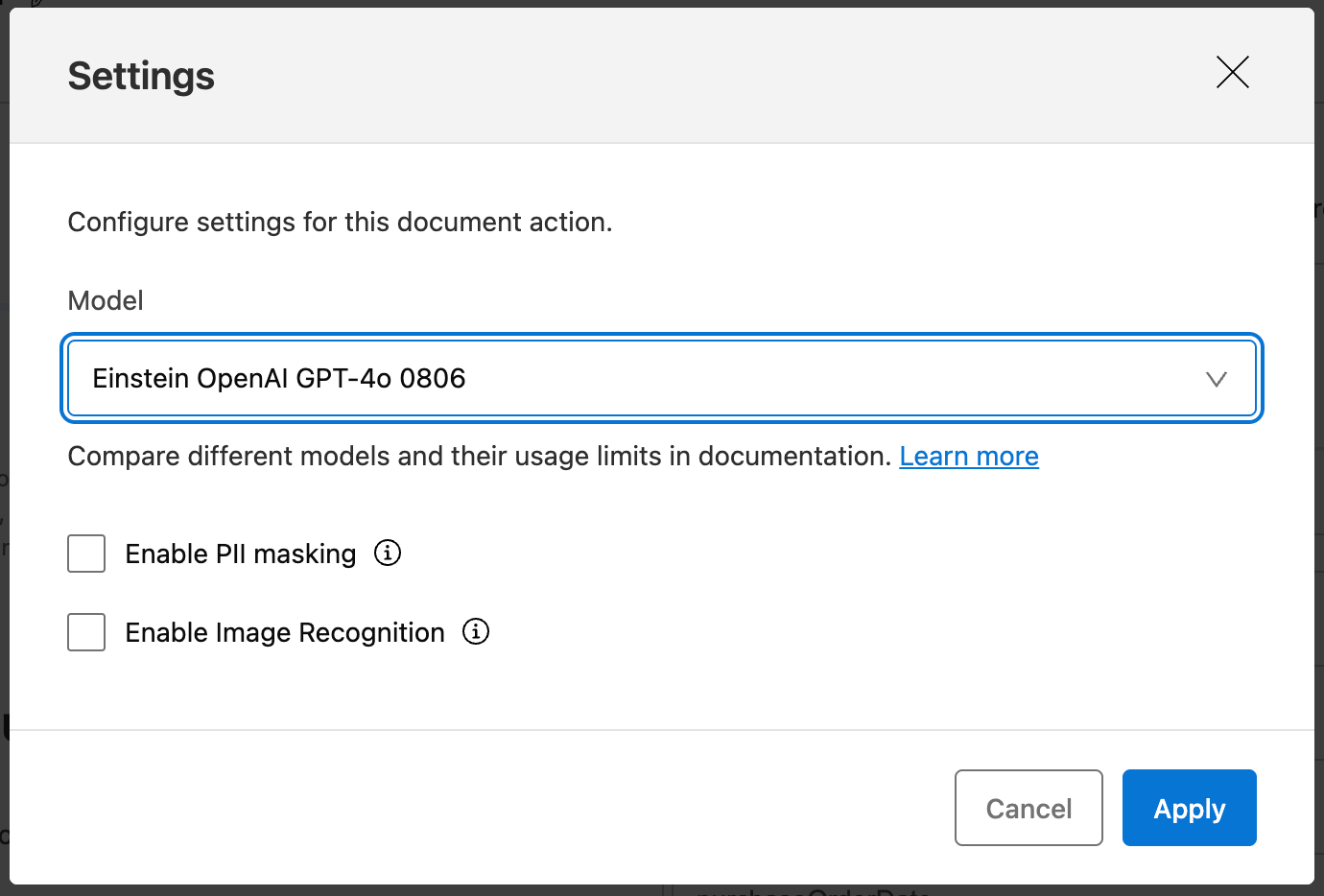
- IDP also allows you to configure the following options under the settings section:
- LLM Model: You can configure the LLM model that best suits your document processing needs.
- PII Masking: You can enable this option to mask personally identifiable information (PII) from documents before sending them to the predictive model.
- Image recognition: This option enables the model to read and interpret images within the document.
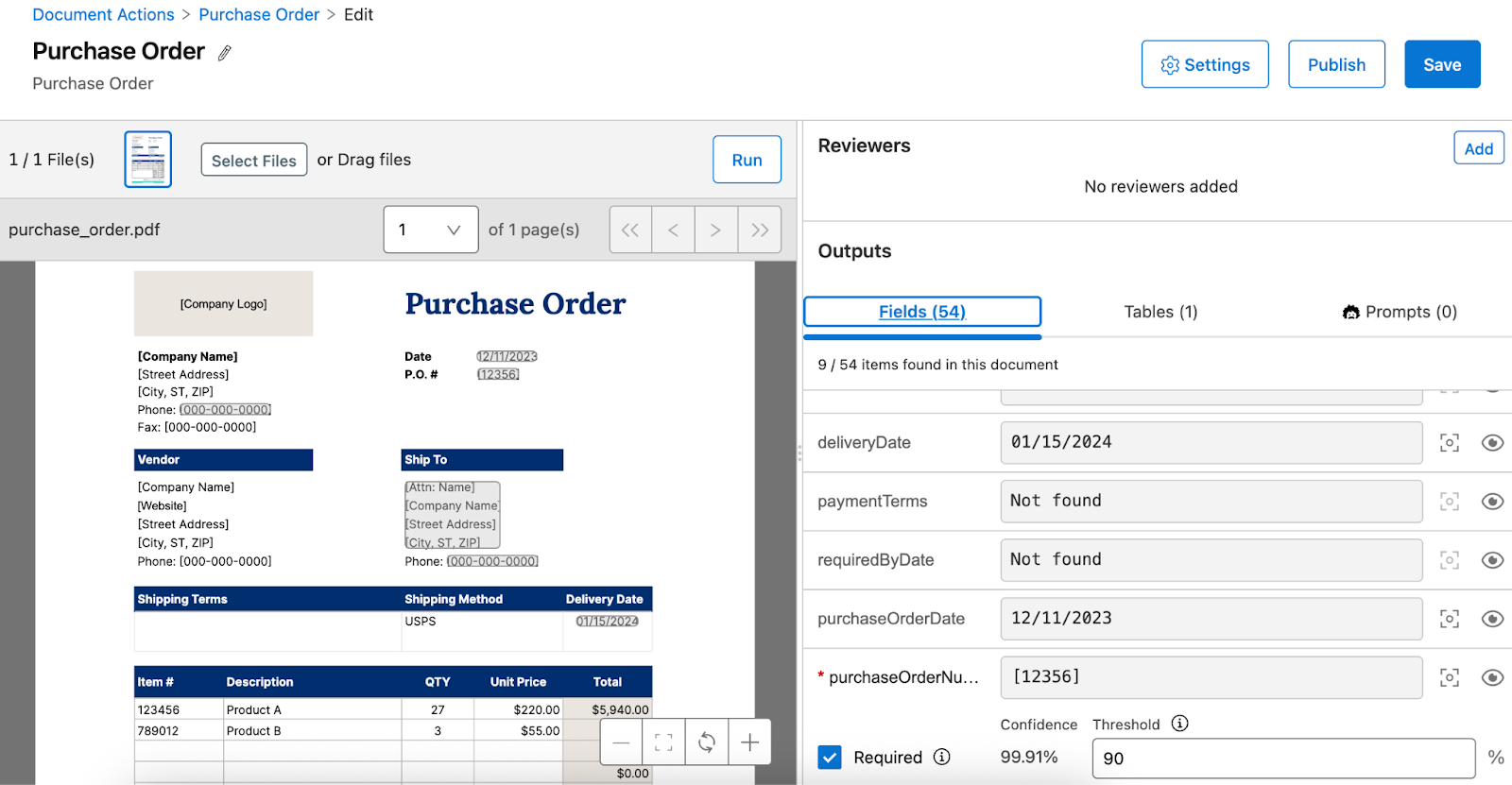
- Once all the fields, tables, and prompts are configured, you can test the extraction process by uploading a sample document and running the document action. After the parsing process is complete, you can view the extracted values in the output section along with the corresponding confidence score. The process can then be further tuned to improve the extraction process.
Publishing the document action to Exchange
After the document action is created and tested to ensure that the extraction process is working as expected, it can be published to the AnyPoint Exchange, which enables seamless integration of the document action with RPA, MuleSoft flows, and other systems using REST API assets.
Before publishing the asset, be sure that you add one or more reviewers. They are required to manually review the extracted data for documents that are under manual review due to field constraints not being satisfied.
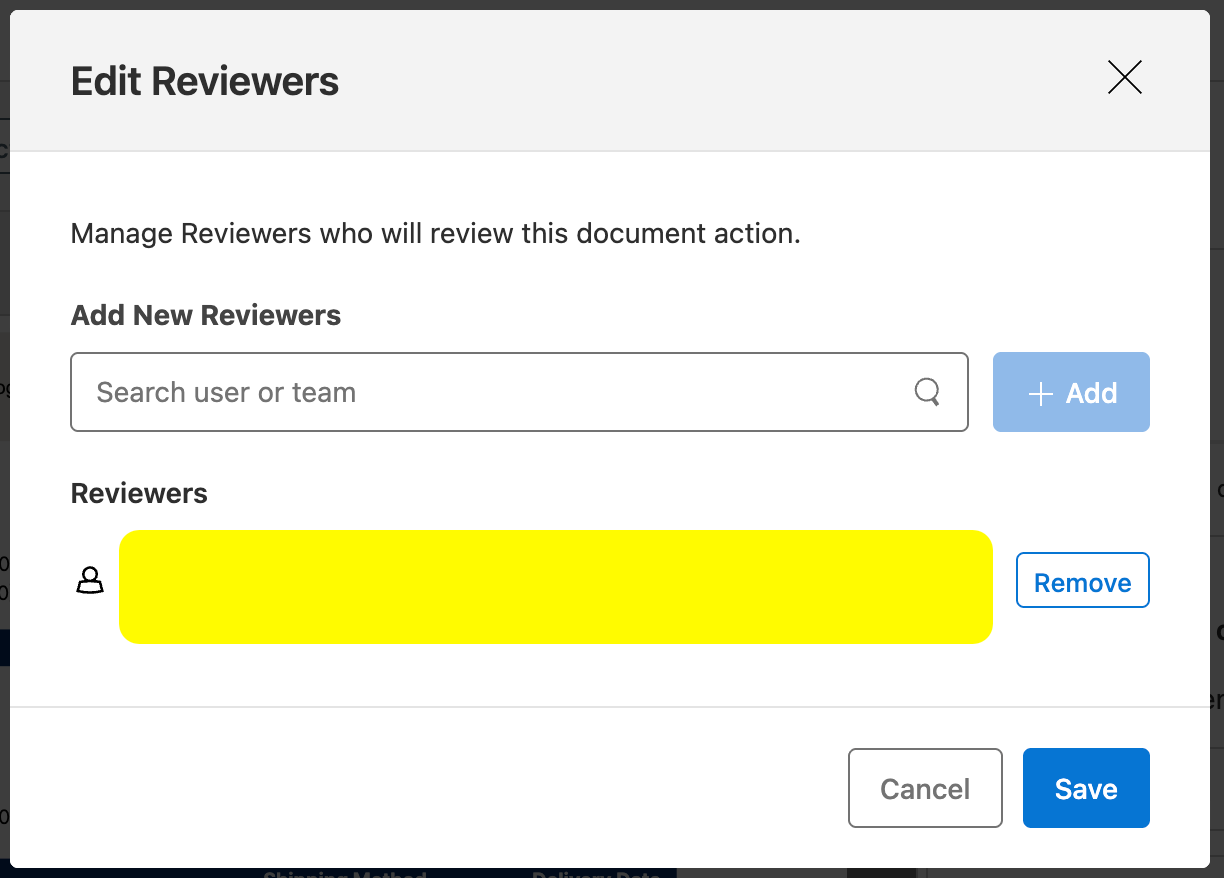
To publish the asset, click on the Publish button.
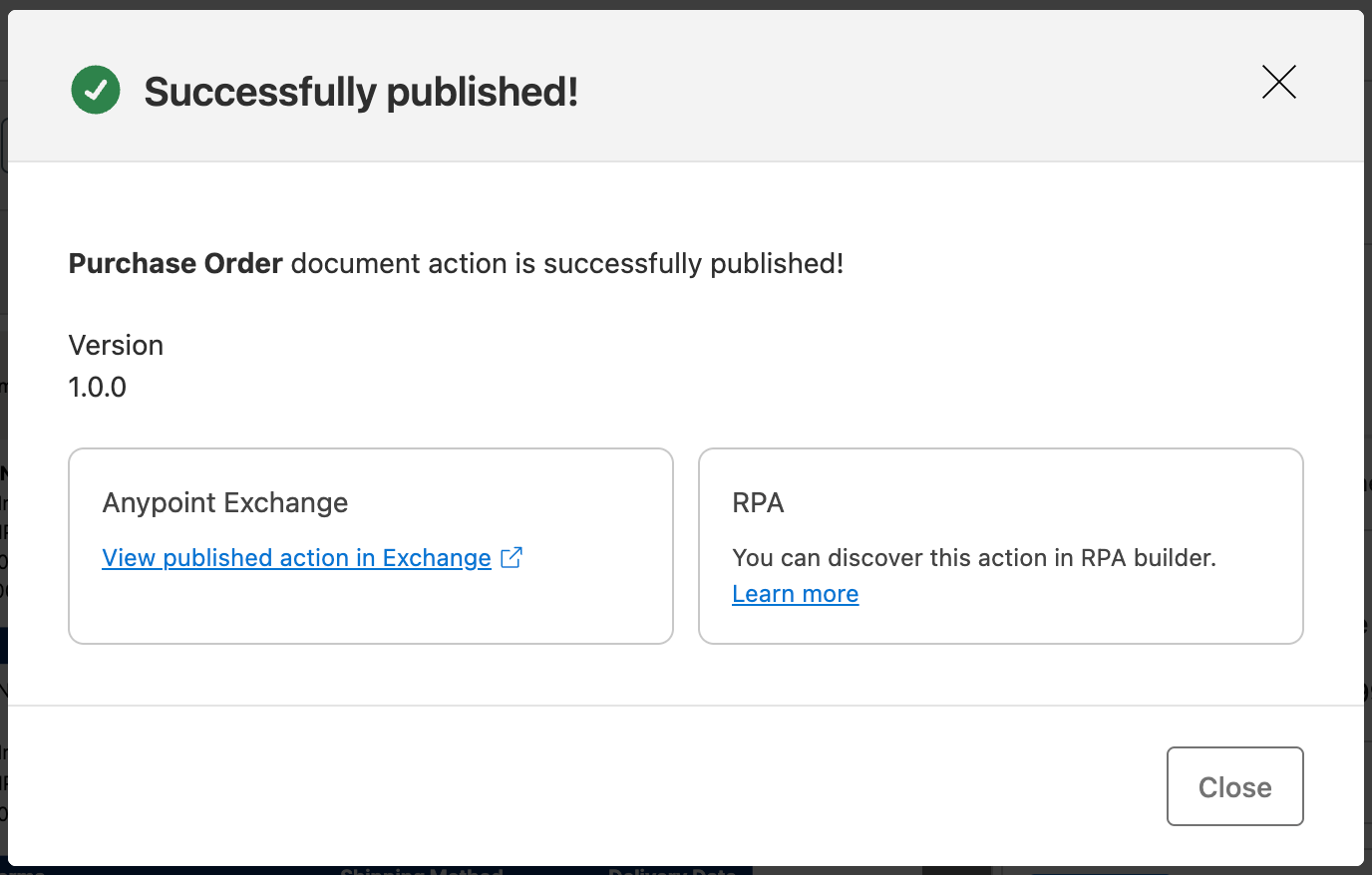
If the document action is being published for the first time, IDP sets the version to 1.0.0. If the document is modified, IDP follows semantic versioning, incrementing the minor version every time a new modification is published.
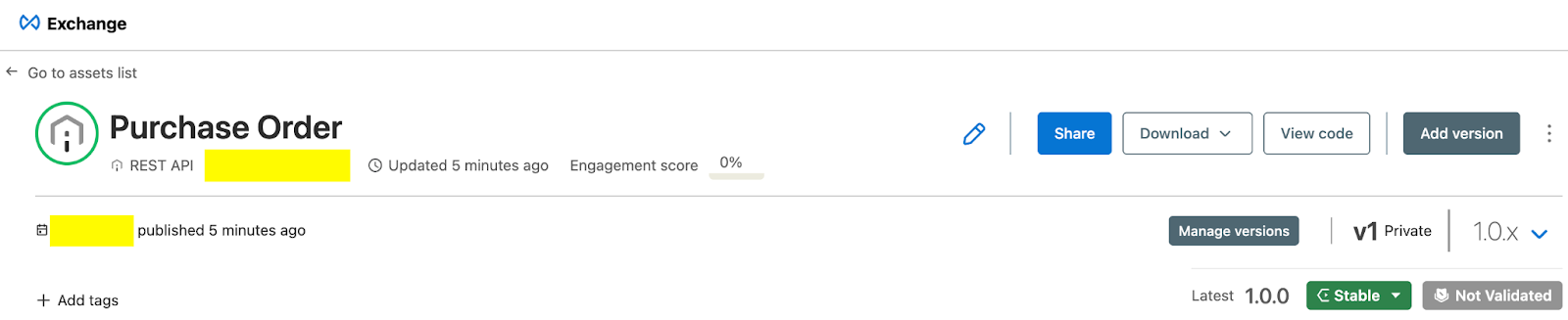
All published versions of the document action asset are stored in AnyPoint Exchange, and each version can be accessed as needed. Earlier versions can even be deprecated to avoid confusion.
Generated APIs
After the document action is published to the exchange, IDP provides APIs for that document action that you can use to process a document and retrieve the results.
To access the IDP APIs, you must create a connected app with the Execute Published Actions scope.
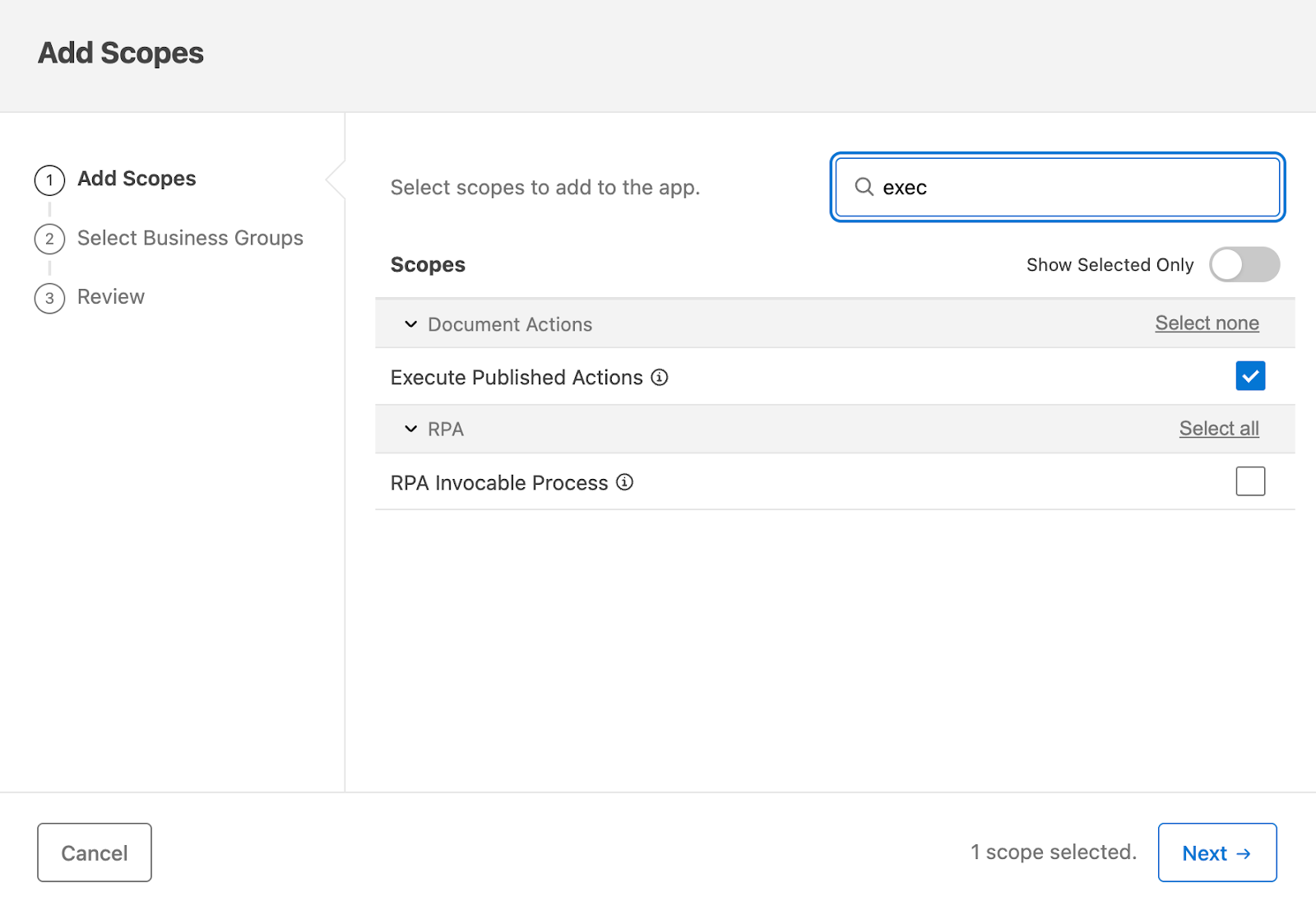
The connected app credentials will be used to obtain the access token, which will be used for calling the IDP APIs.
- Invoke the AnyPoint Platform token API to retrieve the access token required for calling the IDP document action APIs. To obtain the token, use the following cURL command:
curl --location --request POST 'https://anypoint.mulesoft.com/accounts/api/v2/oauth2/token' \
--header 'Content-Type: application/json' \
--data-raw '{
 "grant_type": "client_credentials",
 "client_id": "<connected-app-client-id>",
 "client_secret": "<connected-app-client-secret>"
}'
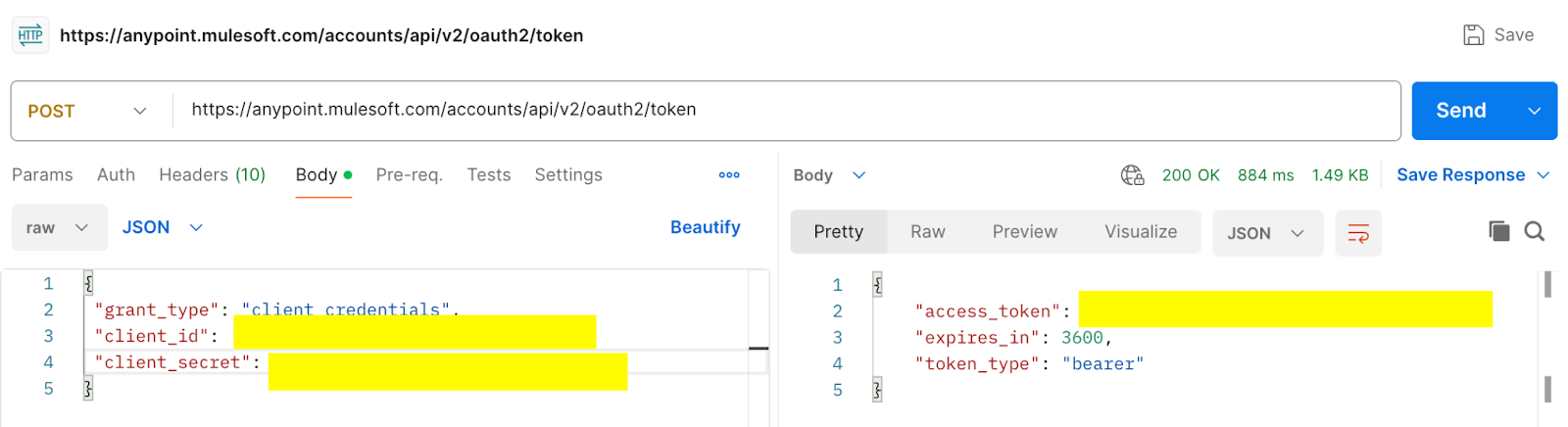
- The Executions API endpoint enables you to trigger a document action with a specific version using the document action ID and version supplied with the document. The document to be processed can be added in multiple ways: either as a base64-encoded string in the JSON body or by using the multipart form data format for uploading the document file.
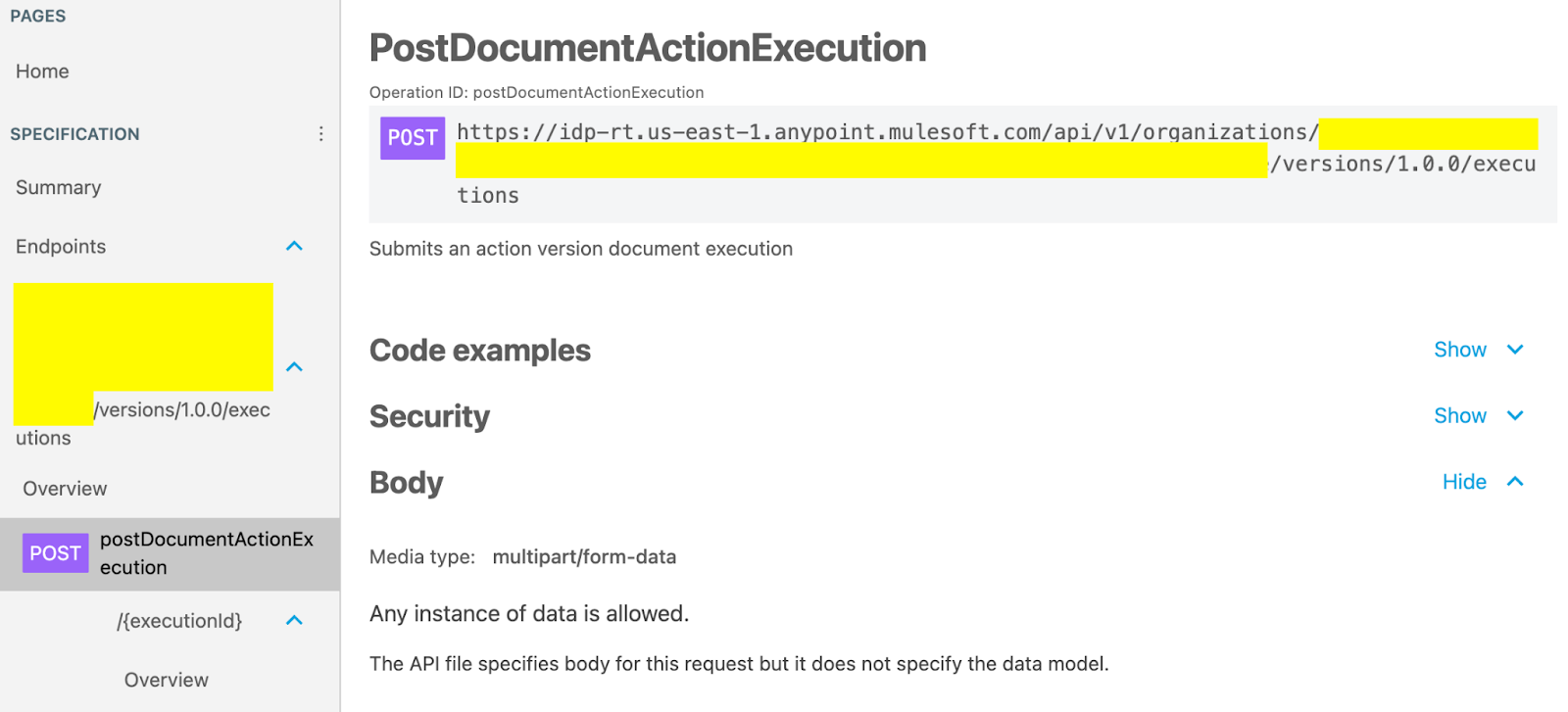
curl --location 'https://idp-rt.{region}.anypoint.mulesoft.com/api/v1/organizations/{orgId}/actions/{actionId}/versions/{actionVersion}/executions' \
--header 'Content-Type: multipart/form-data' \
--header 'Authorization: Bearer {token}' \
--form 'file=@"/purchase_order.pdf"'
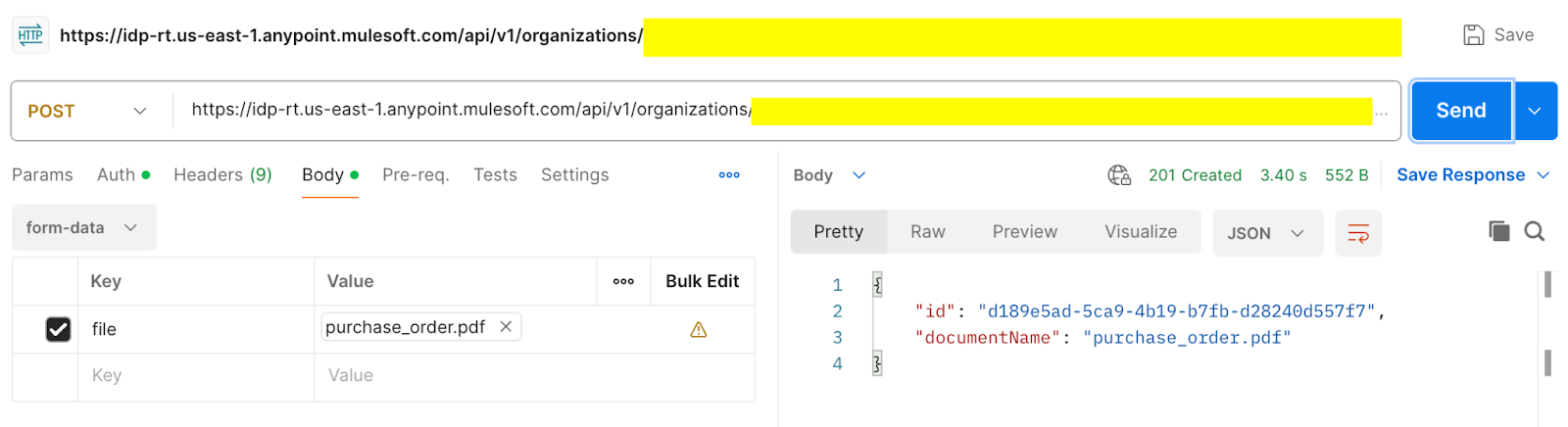
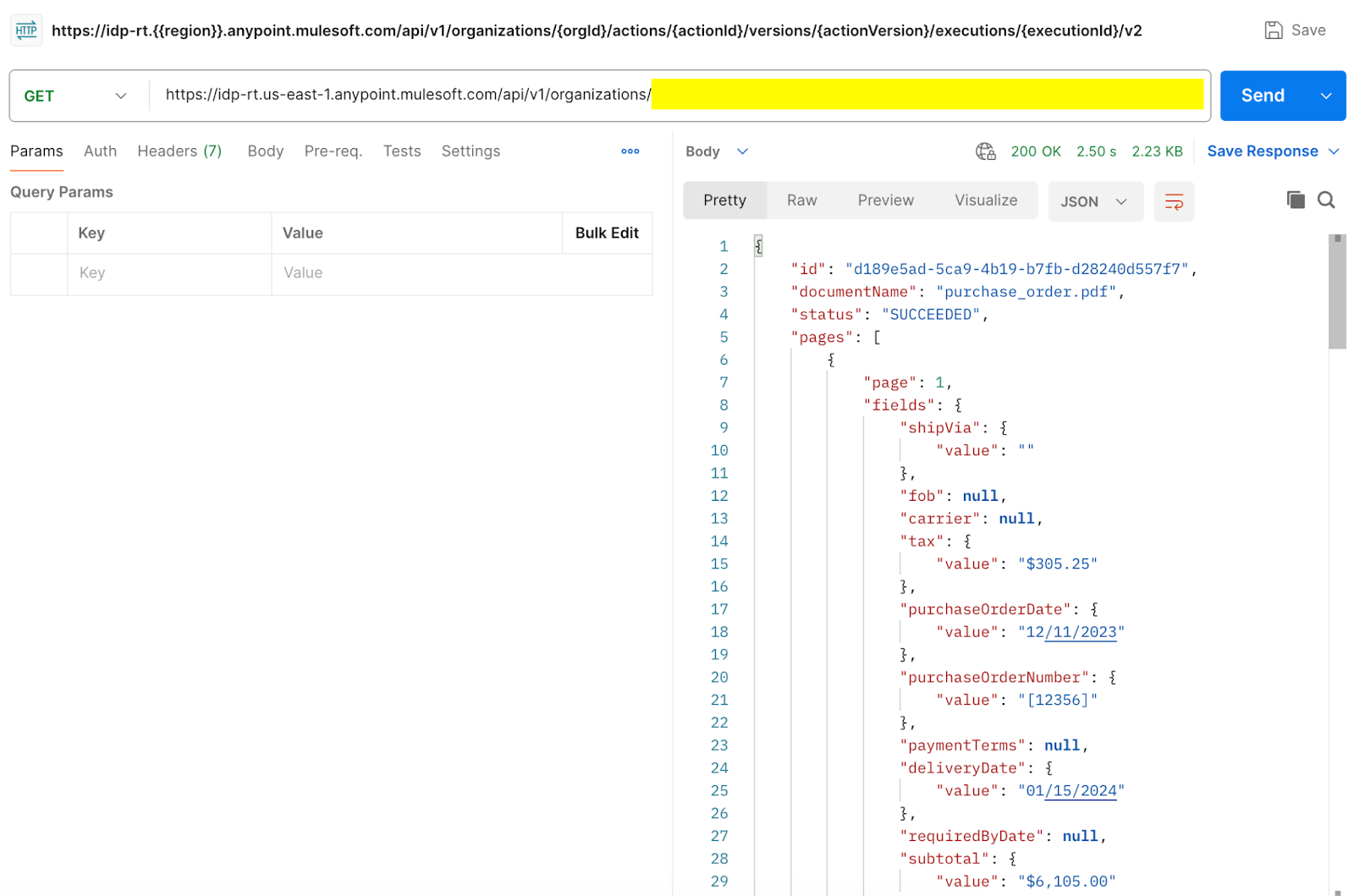
- After submitting the document for processing, you can use the following IDP API to retrieve the results by passing the execution ID from the previous step.
curl --location \
'https://idp-rt.{{region}}.anypoint.mulesoft.com/api/v1/organizations/{orgId}/actions/{actionId}/versions/{actionVersion}/executions/{executionId}' \
--header 'Authorization: Bearer {token}'
{{banner-large="/banners"}}
IDP integration with the Mule application
Let’s try to build a Mule application that submits a document for processing and pushes the parsed results to a database table using the IDP APIs discussed previously.
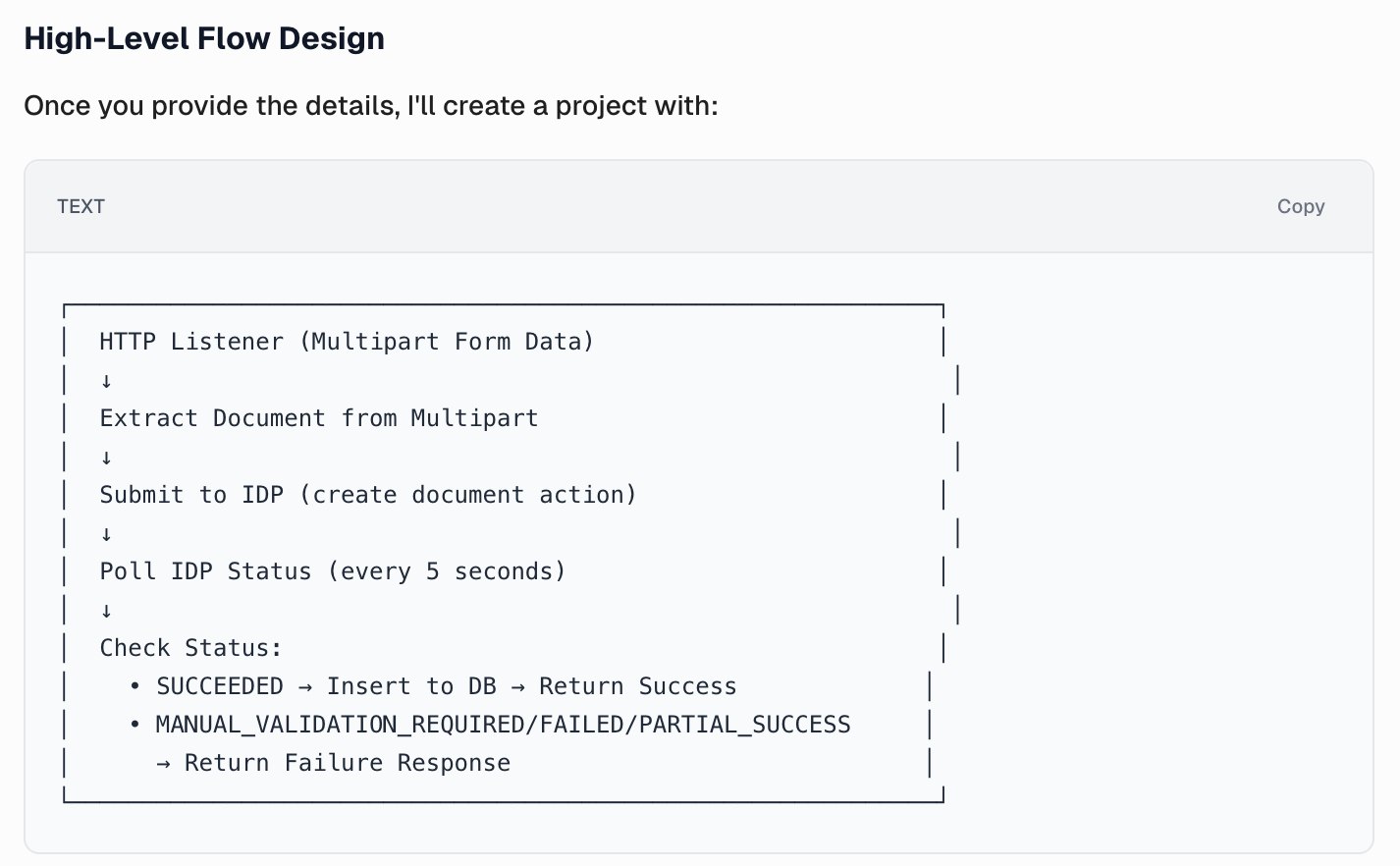
Here’s how the application flows are designed:
- The Mule application exposes an endpoint that accepts the purchase order document and publishes the document for processing using the created document action API in IDP.
- After the document is submitted, the retrieval API is called at an interval of 5 seconds until the response status is either SUCCEEDED (denoting successful parsing of the published document), MANUAL_VALIDATION_REQUIRED, FAILED, or PARTIAL_SUCCESS (denoting either that parsing failed partially or completely or some of the specified requirements in the document action were not satisfied).
- If the status is SUCCEEDED, the data is inserted into the database, and the success response is returned to the consumer.
- If the parsing request fails with MANUAL_VALIDATION_REQUIRED, FAILED, or PARTIAL_SUCCESS, a response denoting the failure is returned to the consumer.
Publishing the document for processing to IDP
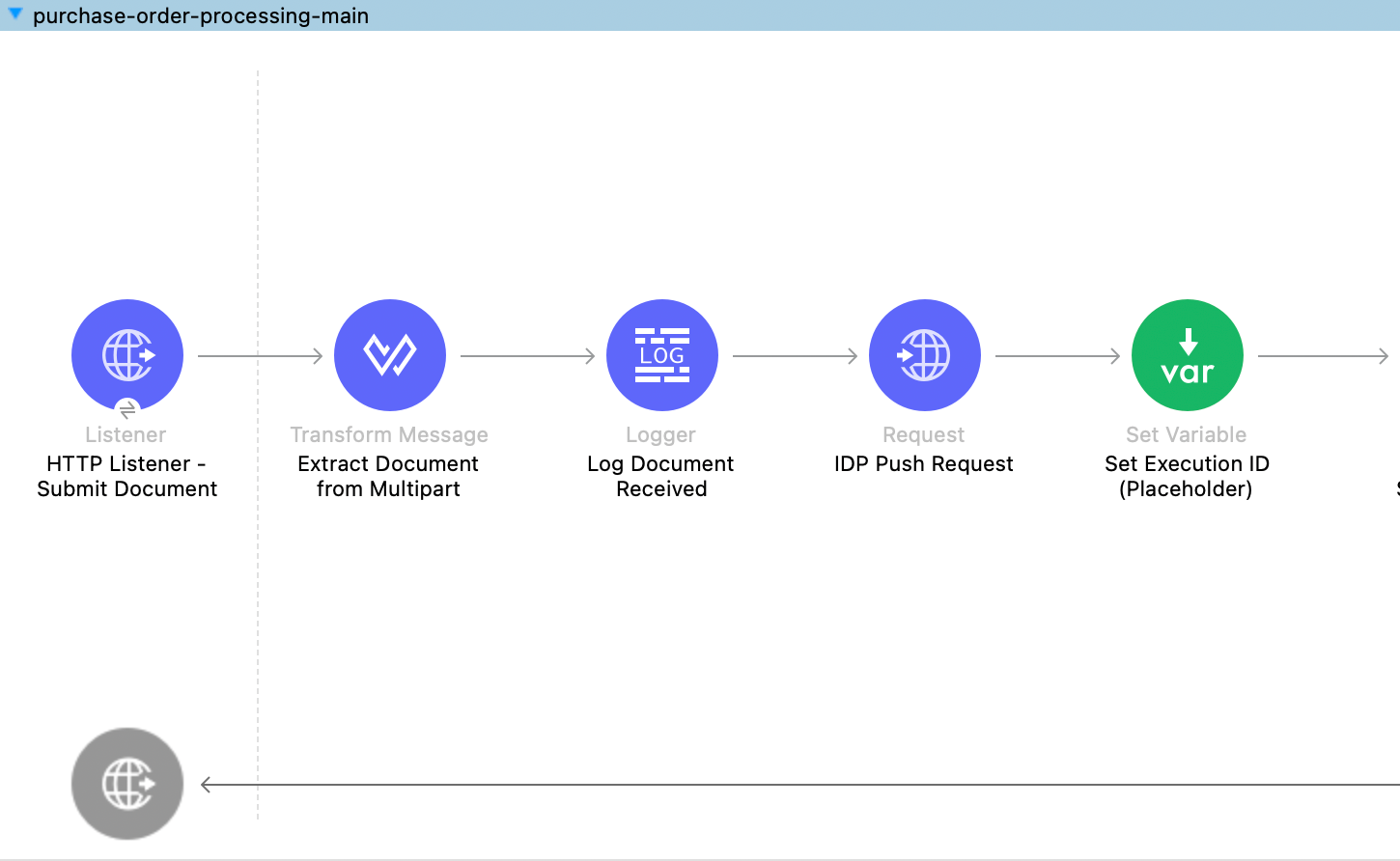
The following MuleSoft flow exposes a resource that accepts a purchase order document, retrieves the token from the AnyPoint Platform, and creates an execution for the document using the Create Execution document action endpoint.
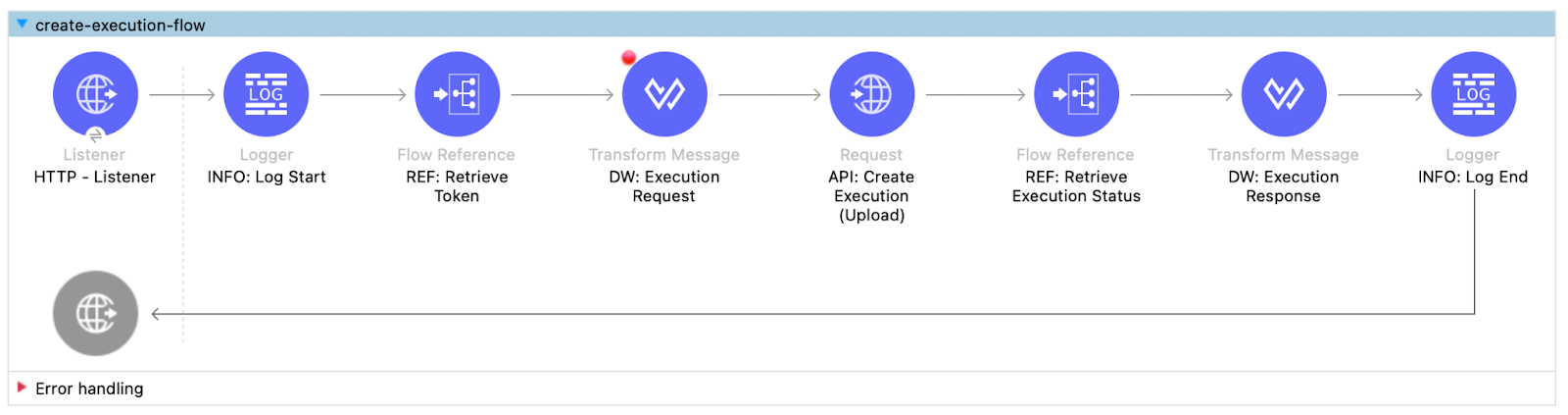
Once the document is published to IDP for processing, the flow invokes the Retrieve Execution Status flow to retrieve the status using the Retrieve Execution endpoint and pushes the parsed data to the database.
After receiving the response from the reference flow, it is then passed on to the consumer.
Retrieving the parsed document from IDP and pushing to the database
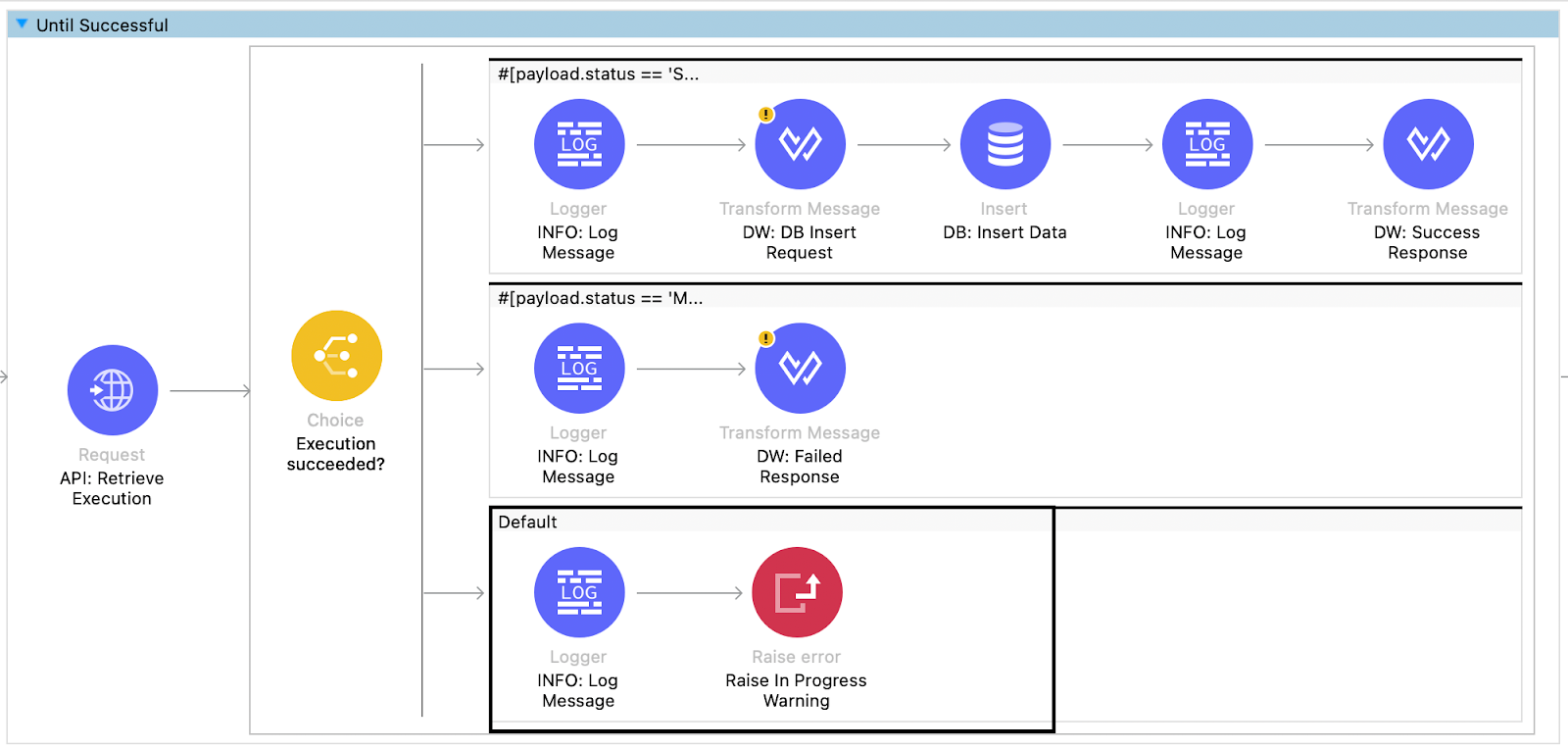
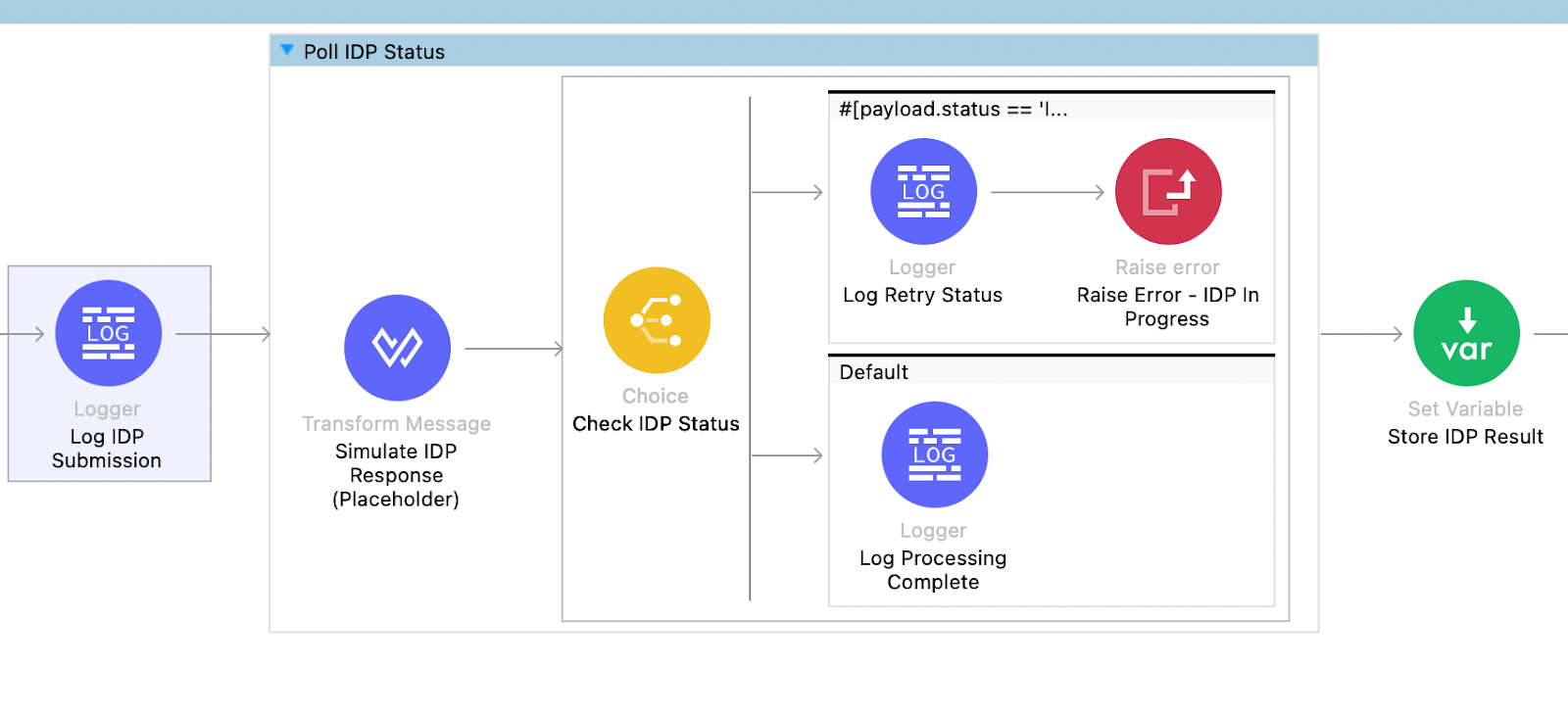
The retrieve execution flow invokes the Retrieve execution document action endpoint to retrieve the status of processing. If the execution is in progress (default flow), the flow raises an error using the Raise Error component, allowing the request to be retried using the Until successful component. This ensures that you can call the retrieve execution endpoint until the request is successful or fails. This retry is configured to occur every 5 seconds for a maximum of 5 requests.
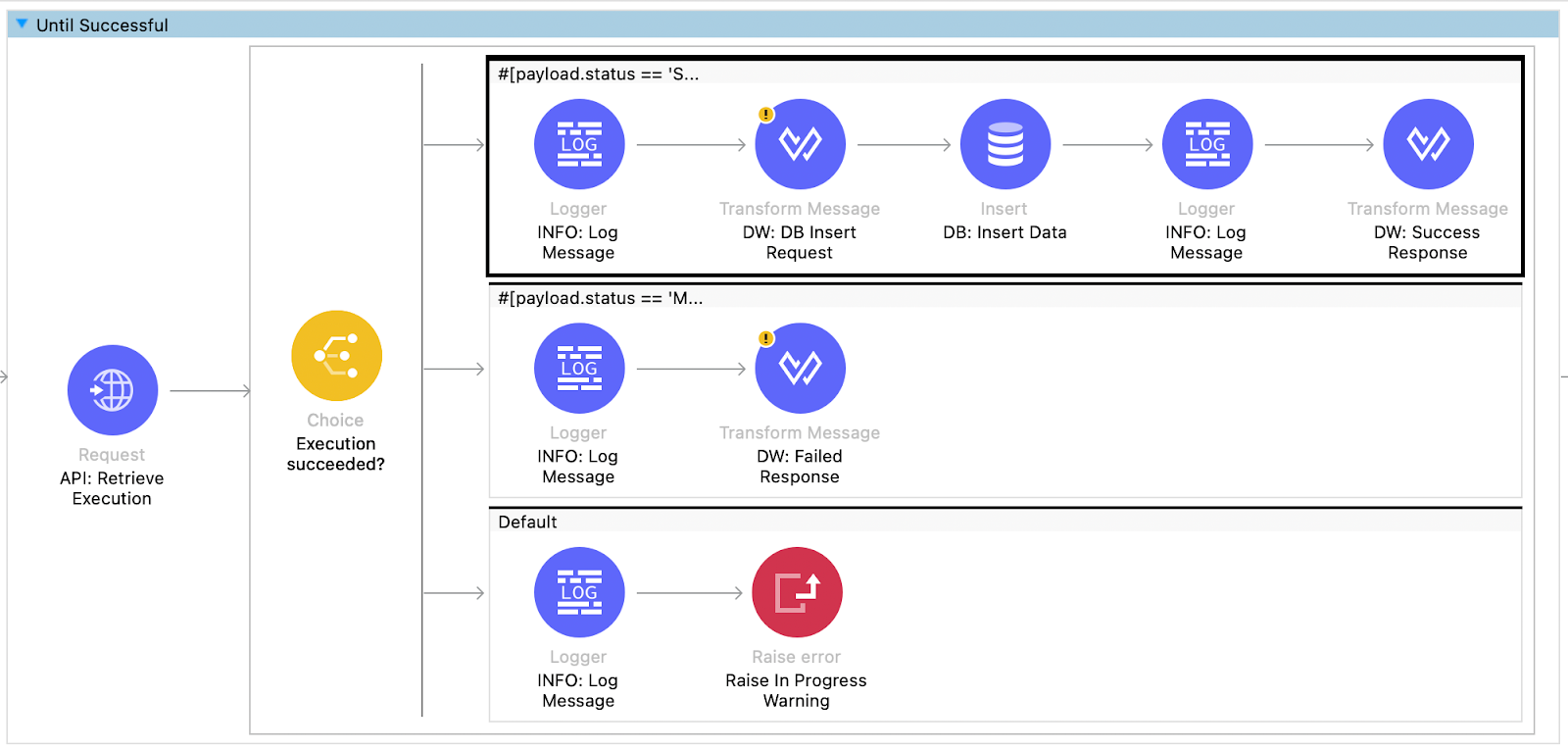
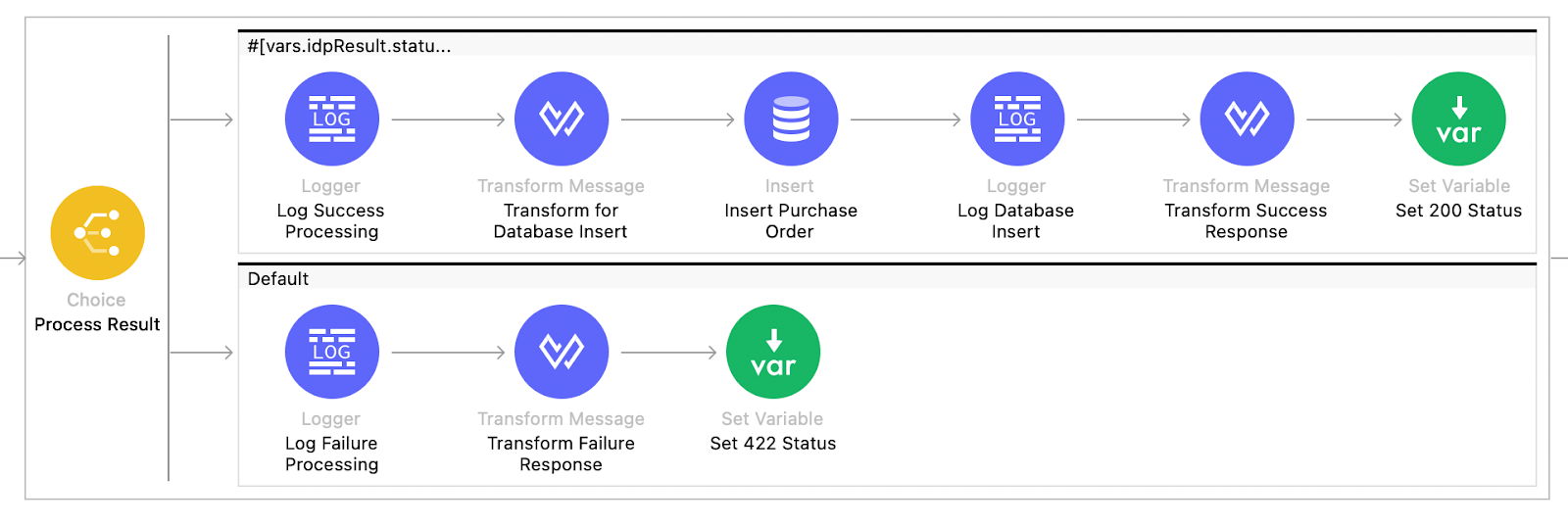
If the execution status is successful, the flow creates a request to insert data into the database table for purchase orders, and a success response is returned to the consumer.
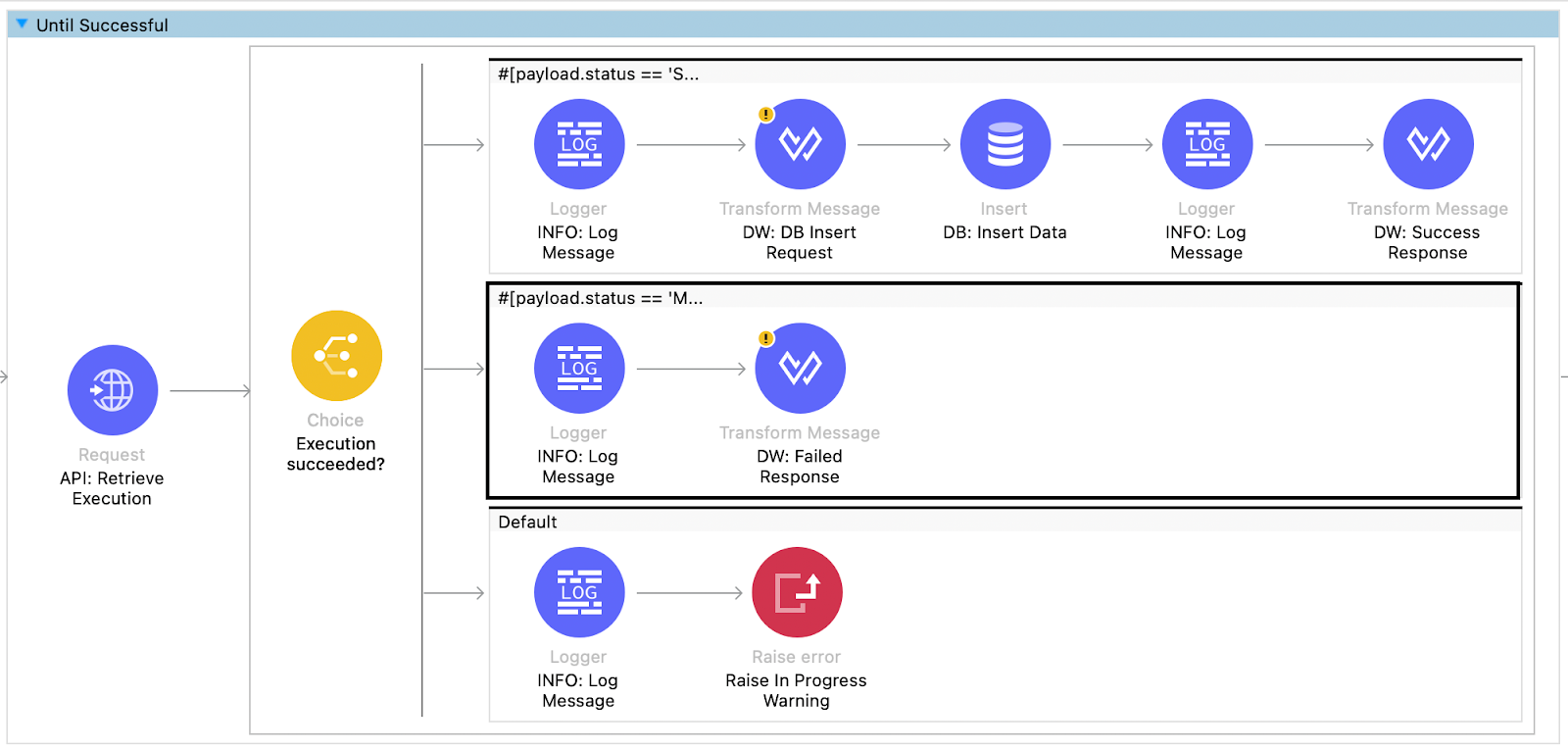
If the execution status indicates failure or partial failure due to manual validation being required or a document parsing error, a failed response is returned to the consumer with the corresponding failure status and message. The calling application can take action based on the failure status to rectify the issue, such as creating a notification for reviewers to review the document and approve or reject it.
Let’s try to execute the process by implementing a request from Postman. Here, a purchase order file is posted to the Mule endpoint.
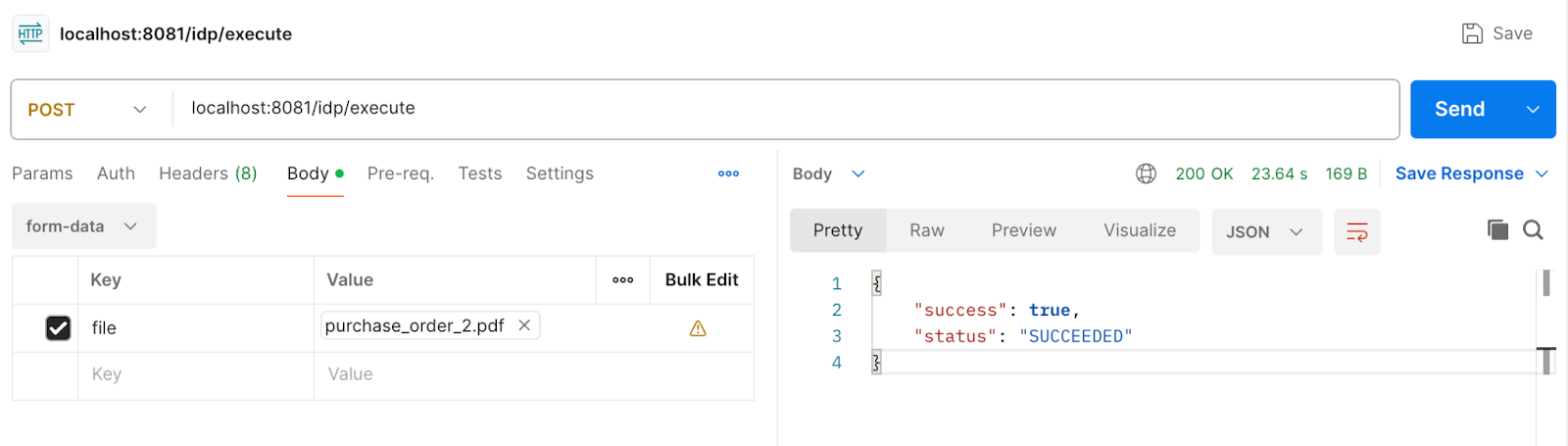
Once the flow executes the process and the parsing of the purchase order document is successful, the parsed data is pushed to the database.
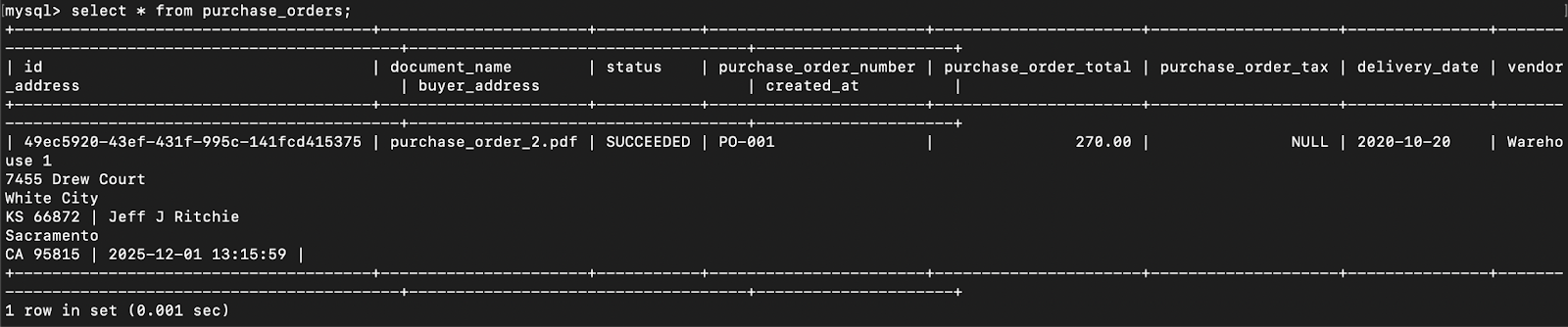
This completes the flow for publishing the purchase order document, retrieving the parsed data, and pushing it to the purchase orders database table.
Using the CurieTech AI Agent Repository Coder to create a MuleSoft application
CurieTech AI is a platform designed specifically for MuleSoft. It provides AI agents, such as the Repository Coder, DataWeave Generator, and MUnit Test Generator, that assist you in coding, testing, and documenting complete workflows. CurieTech also offers a conversational interface that enables you to create complex and straightforward integrations using simple natural prompts.
Let’s use the CurieTech AI Repository Coder agent to accelerate the creation of MuleSoft flows for publishing documents to IDP and then retrieving the results to push them into a database. The screenshot below shows the prompt used to generate the Mule application, which exposes an endpoint for accepting purchase order documents, publishing them to IDP using the Document Action API, and retrieving the results from IDP to push them into the database.
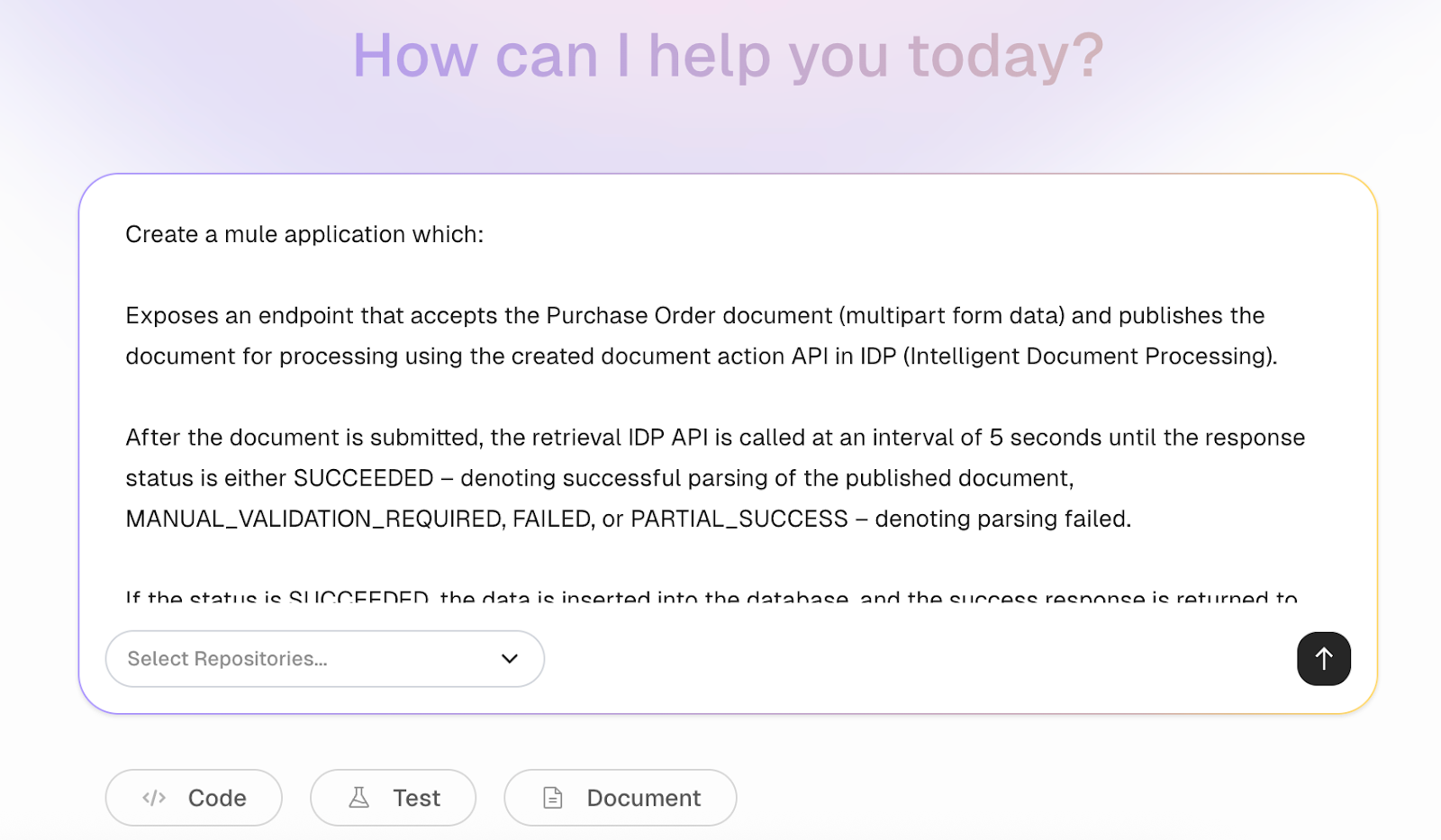
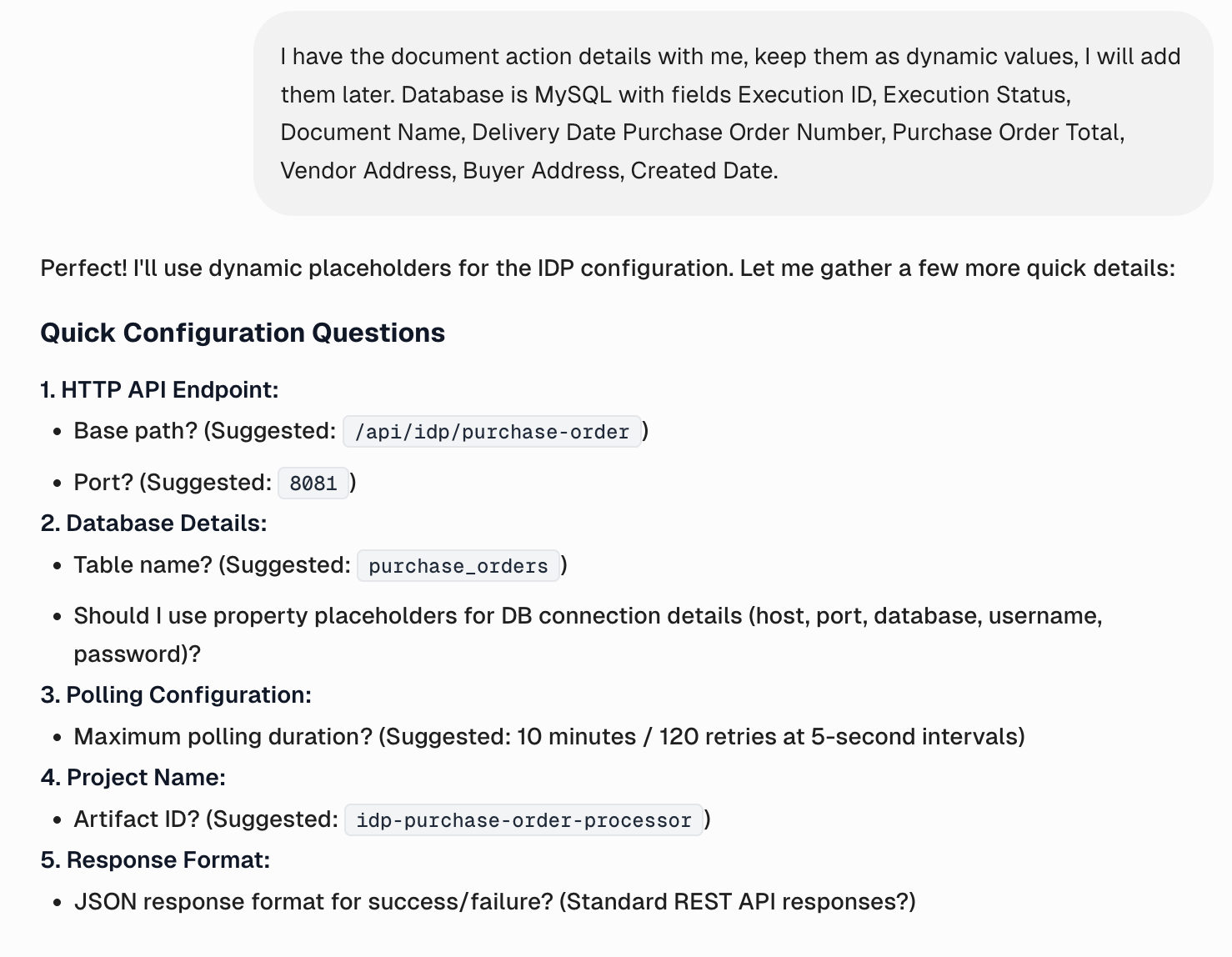
After submitting the prompt, the Coder requests some required information about IDP, including the document action ID and version, database configuration details, and project configuration details, such as the project name, Mule runtime version, and Maven version. It also provides a high-level flow design, explaining the complete flow from start to end.
Here are snapshots from the conversation with the AI Repository Coder.
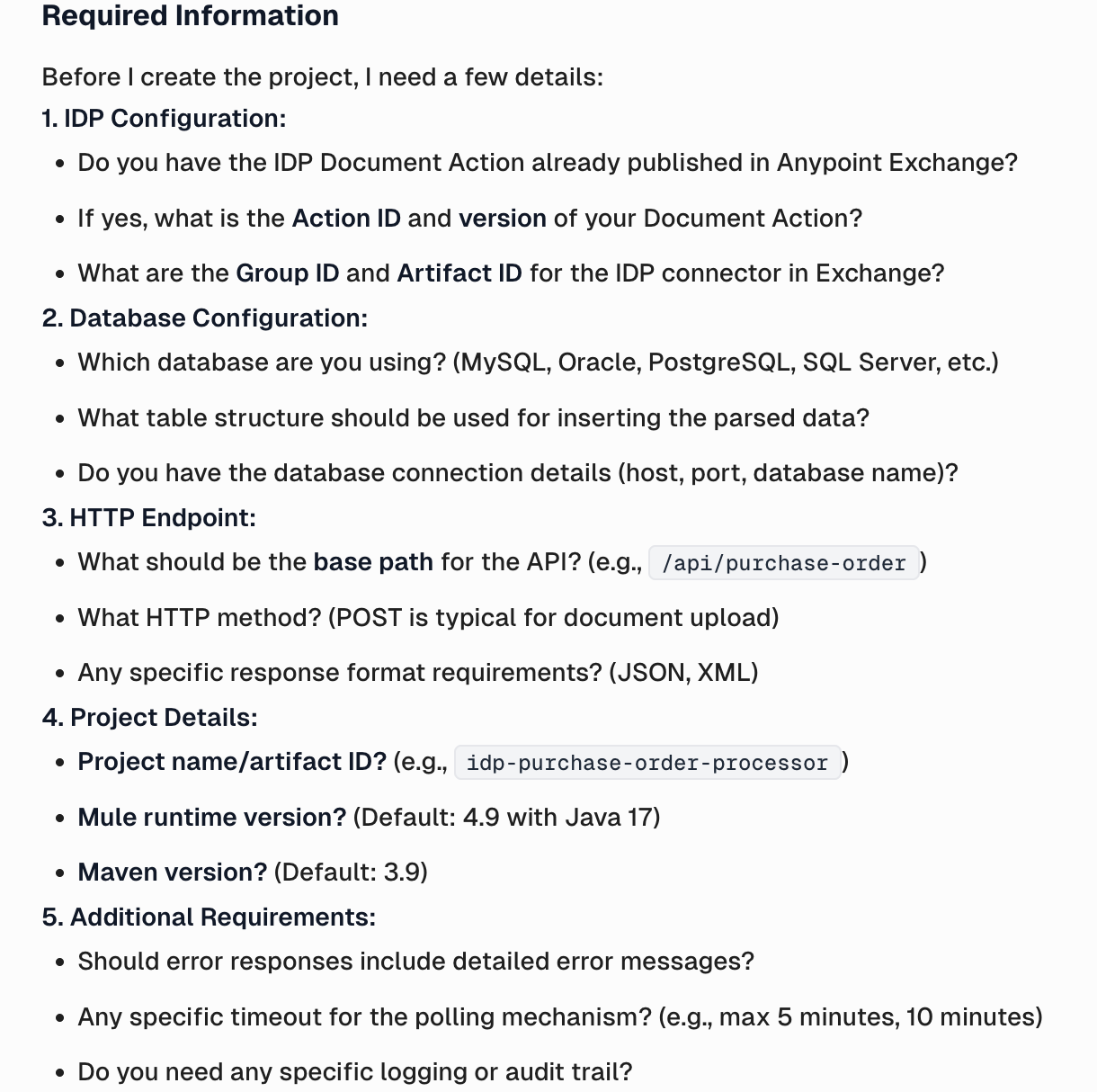
You can provide the details requested and ask the Coder to proceed with generating code for the Mule application.
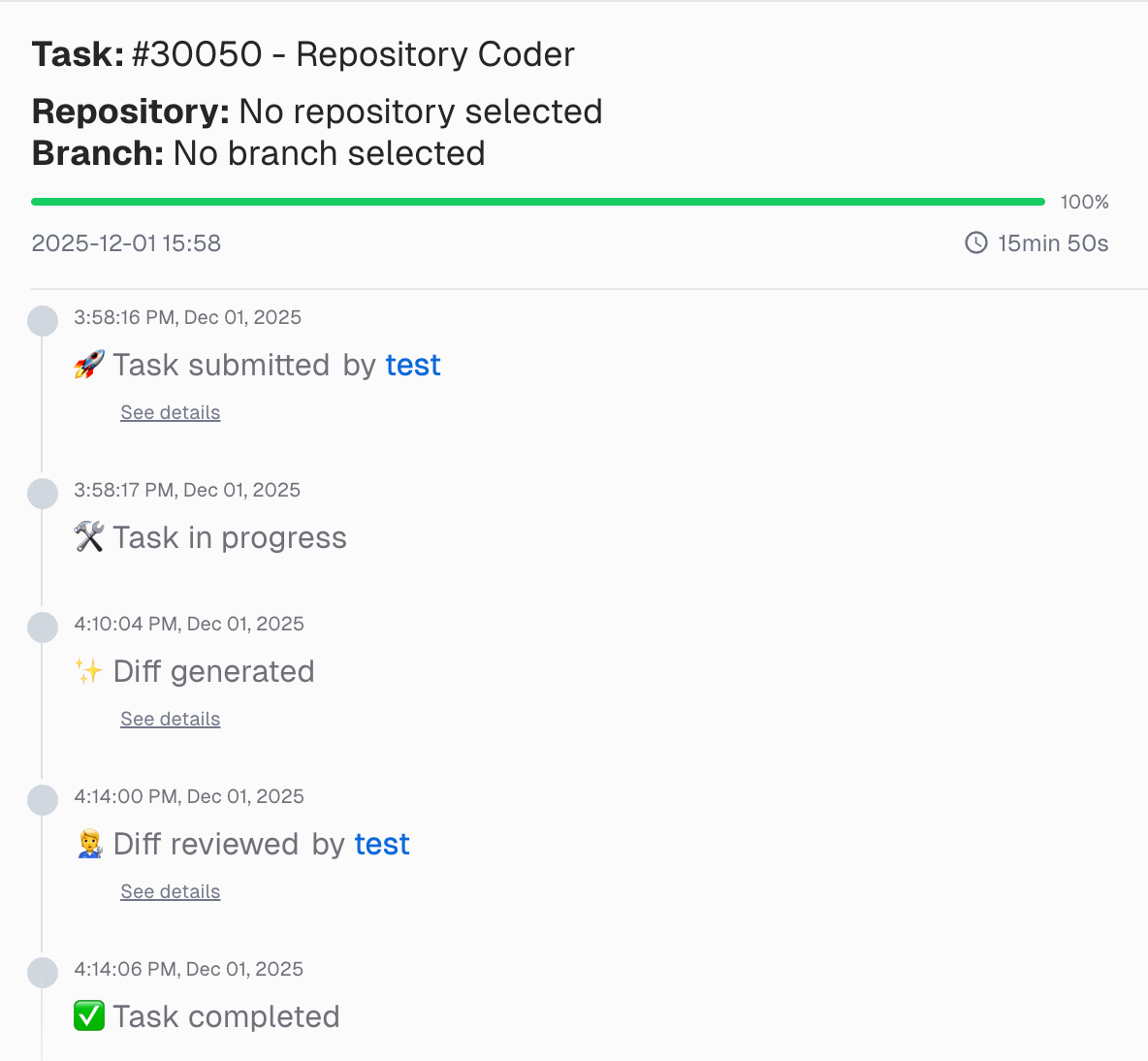
The Coder works on the task, utilising the provided information in the prompt and follow-up responses, executing the shared high-level design to generate the Mule application.
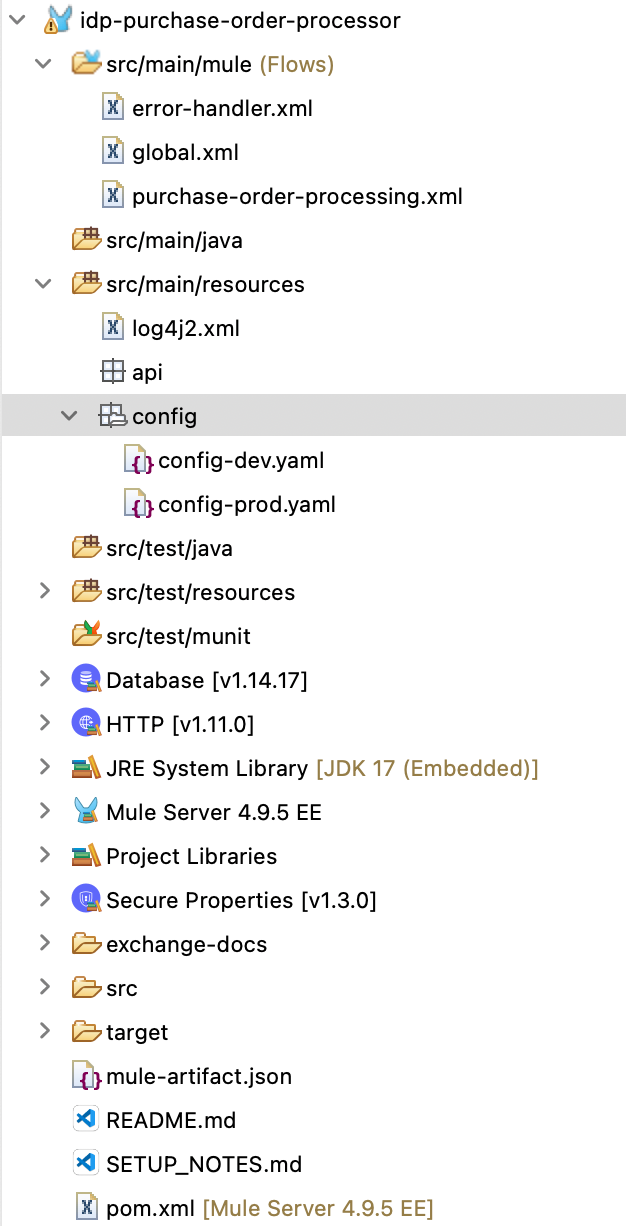
Next, the tool generates the complete Mule application with a standardised application structure, which includes an error handler for handling IDP process errors, a global configuration file containing project-specific configurations, and a purchase order processing file that outlines the process and logic for publishing and retrieving documents to/from IDP.
This part of the flow publishes the document to IDP using the document action API.
The screenshot below shows the logic generated by the AI Repository Coder for polling the IDP API to retrieve the document status.
The next part of the flow contains the logic to push the data into the database and handle failure results from the IDP response.
The Coder generates the complete end-to-end flow, handling everything in the process with just the provided prompt. It may require you to make some adjustments to the flow and process, but it significantly accelerates the development of MuleSoft processes.
Troubleshooting common issues
Model output and field extraction errors
When working with MuleSoft IDP, one of the most common challenges is dealing with inaccurate model outputs or missing field extractions. These issues can occur when the documents vary in terms of layout, structure, or clarity. As a result, there may be instances where the extracted fields contain missing values, incorrect information, or incomplete data.
To ensure that the parsed documents contain meaningful and consistent data, separate document actions by type, maintain the document structure, and configure the document action field extraction logic to include required fields and a confidence threshold. All these steps ensure the successful parsing of data that contains field values that are reliable and can be used for processing.
It's always better to mark the document for manual review instead of using insufficient data for processing, which can cause data consistency issues across the business.
For example, if the amount due is a required field in your dataset and the supplied document doesn’t contain it, the document will be marked for manual review.
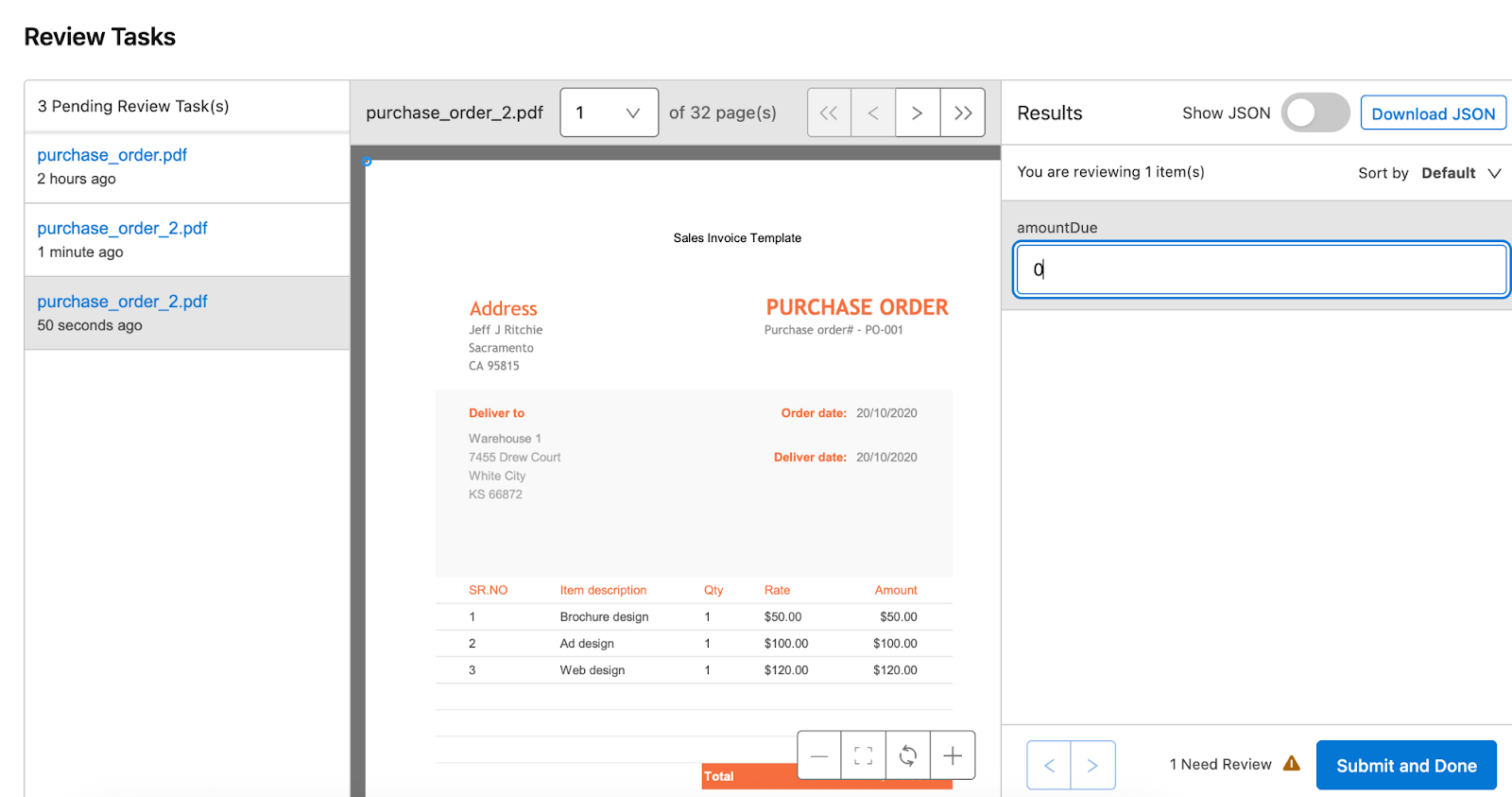
Documents marked for manual review can be found under IDP -> Review Tasks. Reviewers can add the field value manually and submit the document. Once the document is approved manually, it can be used for further processing.
You can even use different parsing models available in IDP to check which model works best for your documents.
Authentication and permission failures
Authentication and permission failures typically occur when the IDP service, connected systems, or underlying APIs don’t have the correct access rights or credentials. These issues can surface due to expired tokens, incorrect client credentials, missing scopes, or misconfigured roles in the AnyPoint Platform.
When calling the IDP APIs, if you are using a token obtained using connected app credentials, ensure that the Execute Published Actions scope is added to the list of scopes. If you are using user credentials (not recommended) to obtain the access token, make sure the user credentials have access to the IDP component in the AnyPoint Platform.
Execution and processing status issues
Execution and processing status issues arise when document jobs get stuck, fail midway, or do not move to the expected status in the IDP workflow. These problems can occur due to backend processing delays, incomplete document uploads, unsupported file formats, or timeouts when the system is under load. Such issues can cause jobs to remain in an ACKNOWLEDGED or IN PROGRESS state for longer than expected.
When building integrations or processes using the IDP document action APIs, follow the following steps to ensure that you build a robust process:
- Design the process to issue notifications to reviewers when a document requires manual review.
- Include checks in the process to retry only for a limited time. If the document processing does not complete within that time frame, issue notifications to stakeholders.
- Keep track of executions that are stuck and regularly check their status to ensure they are progressing as expected. If a certain threshold is reached and the document is stuck in the processing phase, have logic to retry the document.
Using the CurieTech AI Agent Single Code Review Lens to troubleshoot issues with IDP APIs
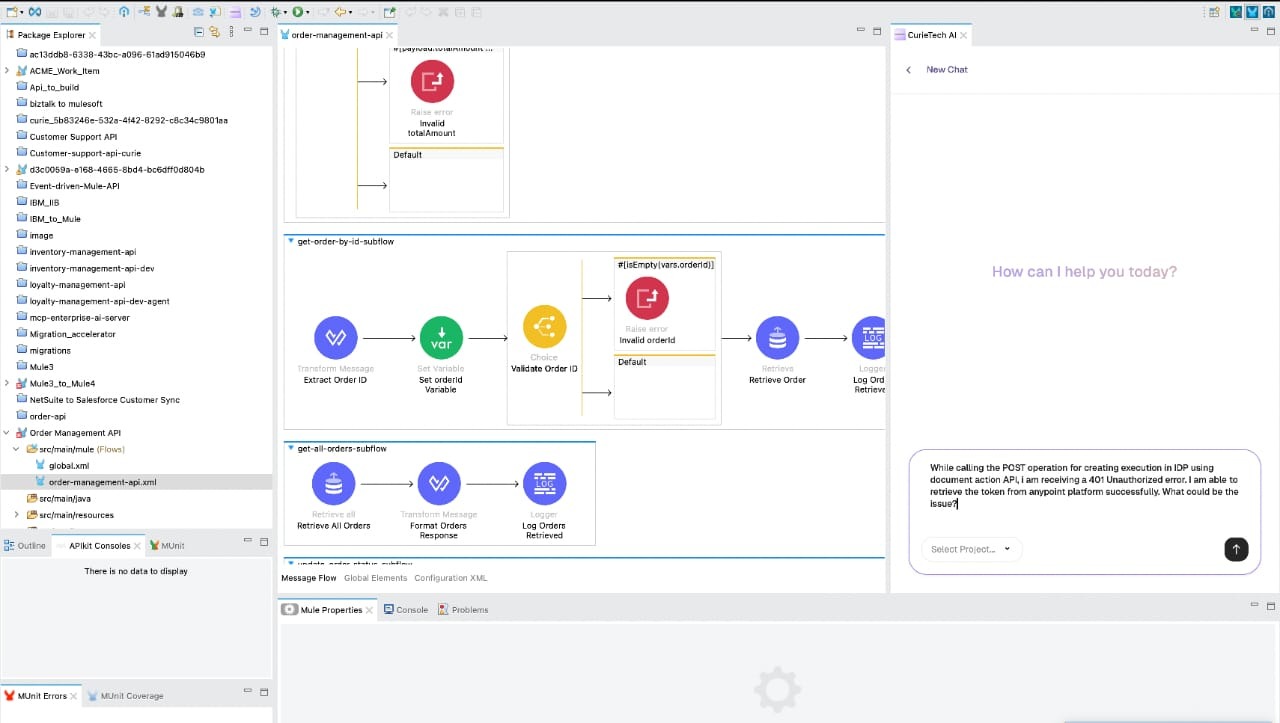
Let’s try using CurieTech AI’s Single Code Review Lens agent to troubleshoot an issue with authentication to the IDP API. While invoking the IDP API to publish a document for processing, the API returns a 401 Unauthorised error.
You can upload the Mule project to the Review Lens or point to a repository. After uploading, explain the error to it and ask it to find out the root cause of the issue. Here is a snapshot from the Single Code Review Lens conversation to identify the problems behind the authorisation error.
It correctly points out that the Execute Published Actions scope needs to be added to the list of scopes for the connected app. It also provides additional suggestions that may be contributing to this issue. This tool can save developers and teams a significant amount of time, giving quick suggestions to identify the root cause of the problem and issuing a fix.
We can also troubleshoot such issues from Anypoint Studio with the help of the Curietech plugin.
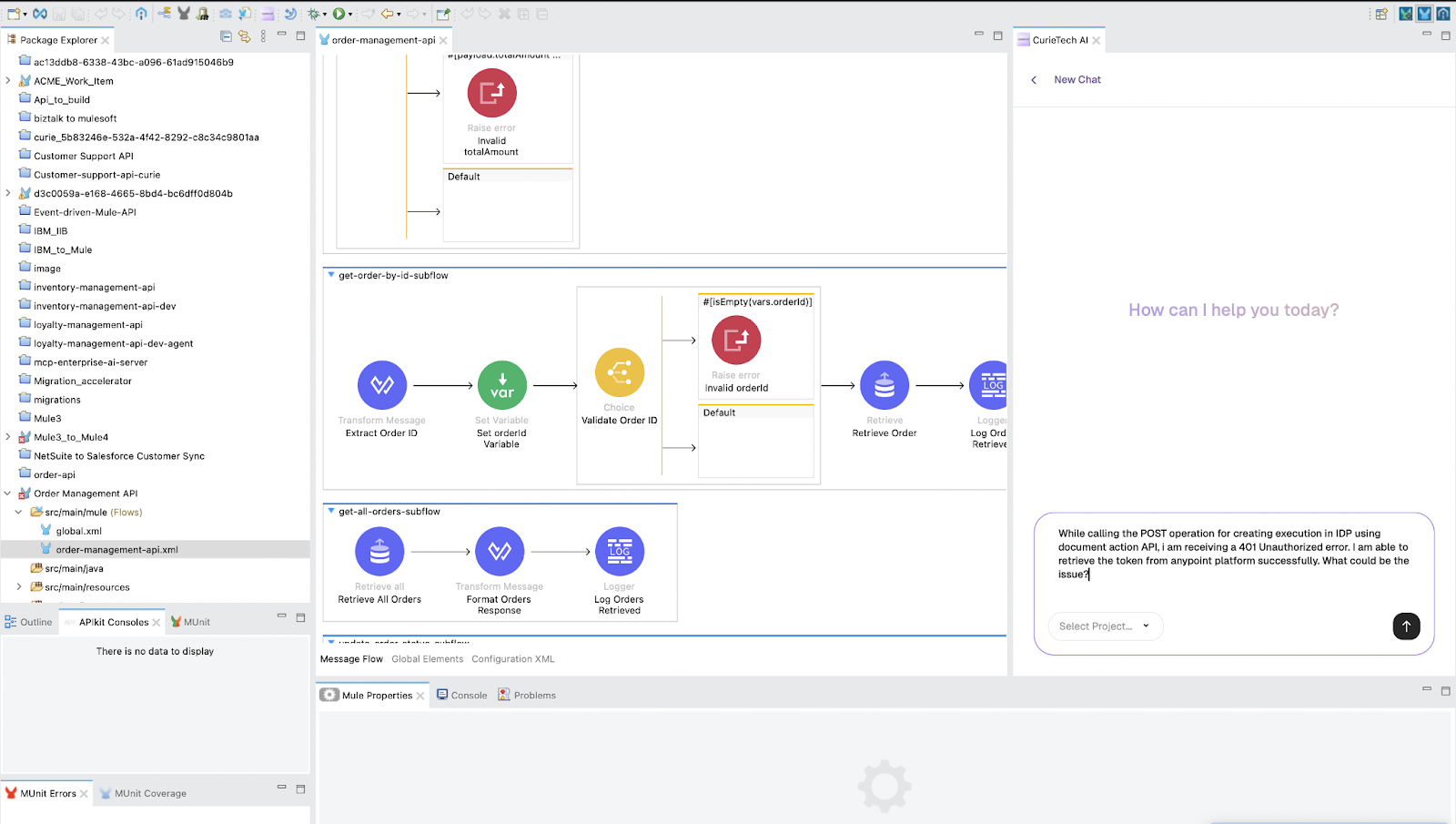
To do so, you can install the Curietech Studio plugin in Anypoint Studio, and once the plugin is installed, you will see the Curietech panel on the right side of the Studio UI as shown in the screenshot below.
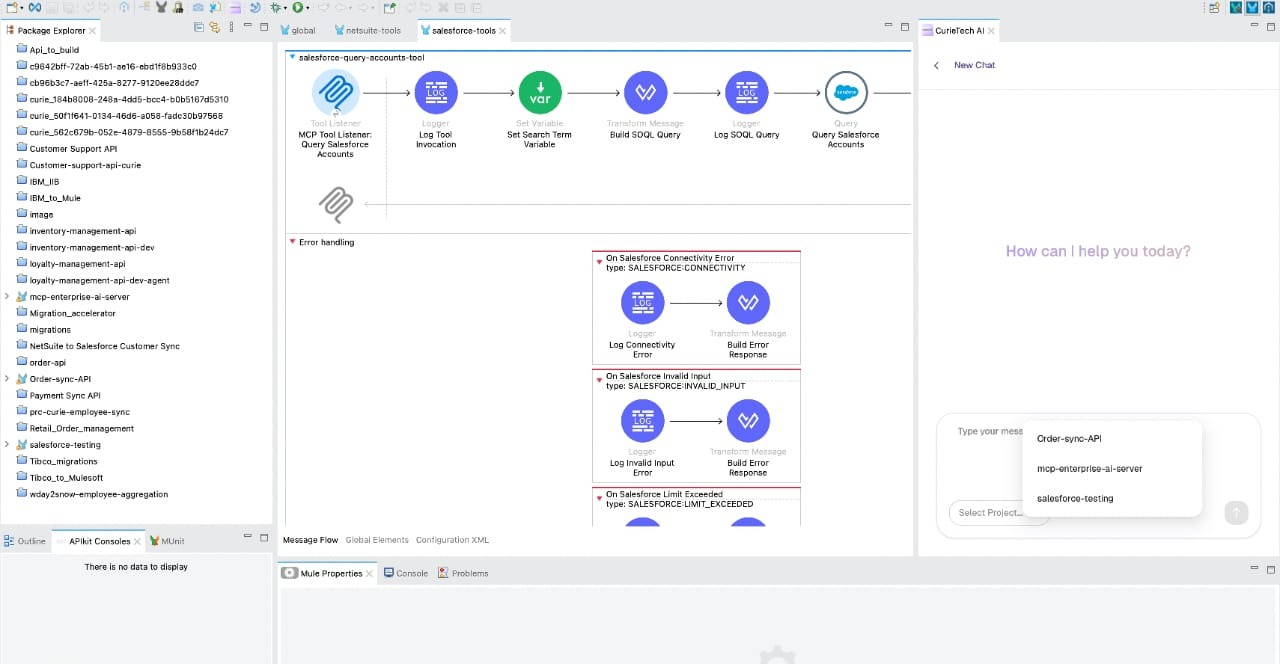
In Studio, you can see the Curietech plugin as a chat box where you can enter the prompt in the same manner as you do in the Curietech browser.
Once you pass the prompt, as shown in the screenshot below, Curietech responds accordingly, and you can apply those changes to your studio without needing to manually copy and paste from the Curietech browser.
Best practices
Ensure strong validation and check data quality
Both of these activities are essential for achieving reliable results in MuleSoft IDP. Poorly structured documents, inconsistent formats, or missing values can cause incorrect field extraction and processing failures. Implementing pre-validation steps such as checking file formats, verifying mandatory fields, and ensuring document clarity helps catch errors early on.
Here are some specific steps to ensure data validation and quality:
- Set confidence score thresholds to decide when to auto-accept and when to route a document for human review.
- Validate critical extracted fields (e.g., invoice totals and dates) after data parsing against known business rules before pushing the data to any end system.
- Maintain a validation log in a database or an external storage system for audit and reprocessing purposes.
Implement proper monitoring and governance.
Effective monitoring and governance help ensure long-term stability and accuracy of your MuleSoft IDP implementations. Follow these specific steps:
- Track document processing latency, throughput, and success rates using AnyPoint Monitoring or custom dashboards to detect bottlenecks or failures quickly.
- Tag all document actions in AnyPoint Exchange with explicit metadata—such as owner, version, and other relevant details—to maintain visibility and accountability across teams.
- Regularly review model performance, check extraction accuracy, and remove outdated or unused document actions to maintain a clean, reliable, and optimised IDP interface.
Integration optimization
Optimising integrations is essential for faster and more efficient IDP workflows. Whenever possible, group smaller documents together, which helps reduce the extra load created by multiple single-document calls and thereby improves overall throughput. Reuse document actions for documents sharing a similar type and structure, which can reduce the effort involved in creating and testing document actions.
Additionally, you can use asynchronous Mule flows to manage longer IDP processing times without blocking threads. This ensures smoother performance and better scalability across your integrations.
Document IDP document actions and flows
Proper documentation is essential for maintaining and scaling MuleSoft IDP implementations. Clearly record each IDP document action, including the extracted fields, prompts, and model configurations, to ensure accurate documentation and capture all relevant information. This ensures transparency and facilitates troubleshooting.
Additionally, document the end-to-end application data flows to illustrate how documents move through Mule, IDP, and downstream systems. This approach simplifies onboarding and decreases reliance on individual team members.
Document using CurieTech AI
To make documentation easier, faster, and reliable, you can use CurieTech AI to generate complete documentation for your Mule applications. You can add the application code and request that the system generate documentation for your application flows.
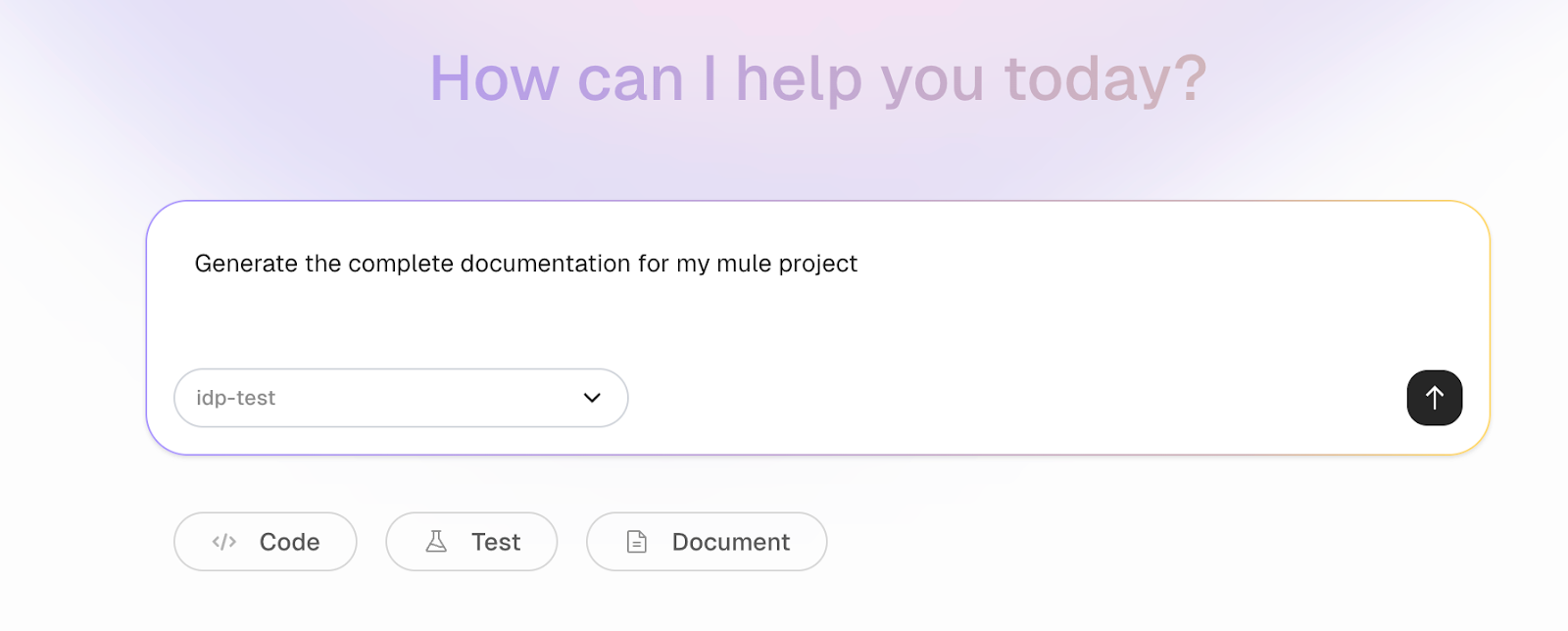
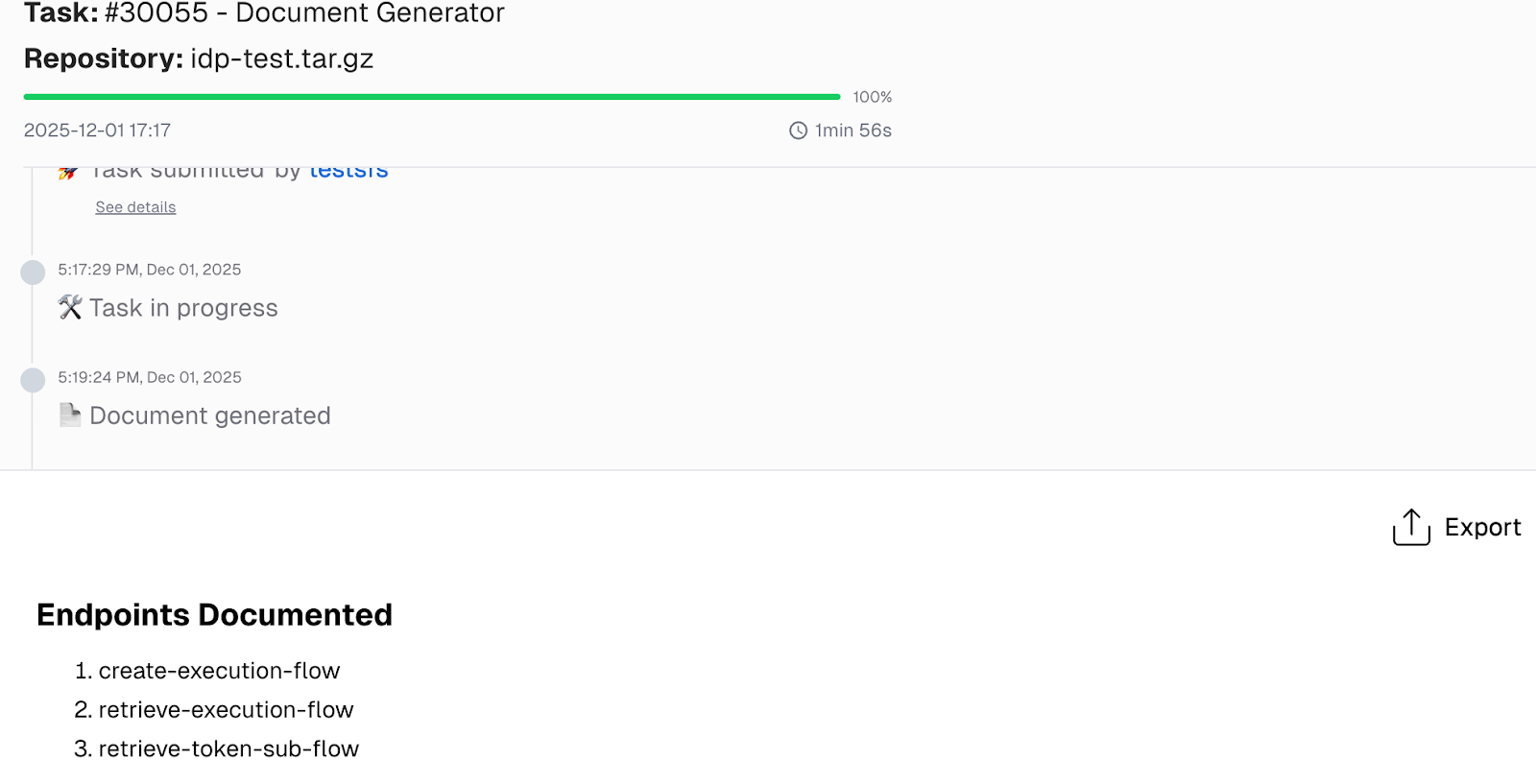
CurieTech AI automatically determines which agent to use (in this case, the CurieTech AI Agent Document Generator) and creates a task to process the prompt. The Document Generator creates end-to-end documentation for the application's flows.
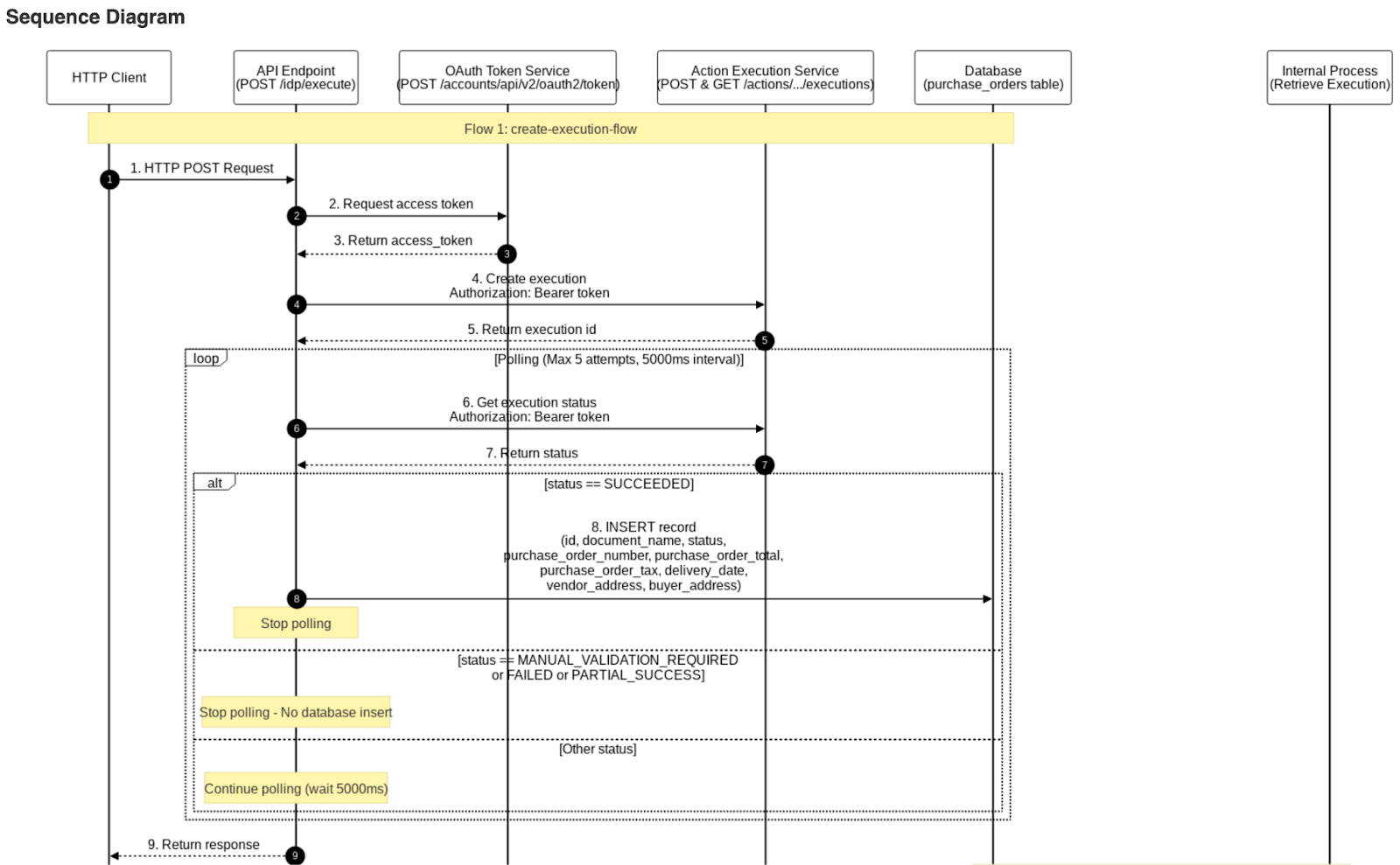
The following sequence diagram, created by the Document Generator, explains the complete flow from the Mule application for publishing the document action to IDP in detail, capturing all requests in the flow (including flow references), process logic for polling the IDP API, and the logic that decides when to retry for the execution status request.
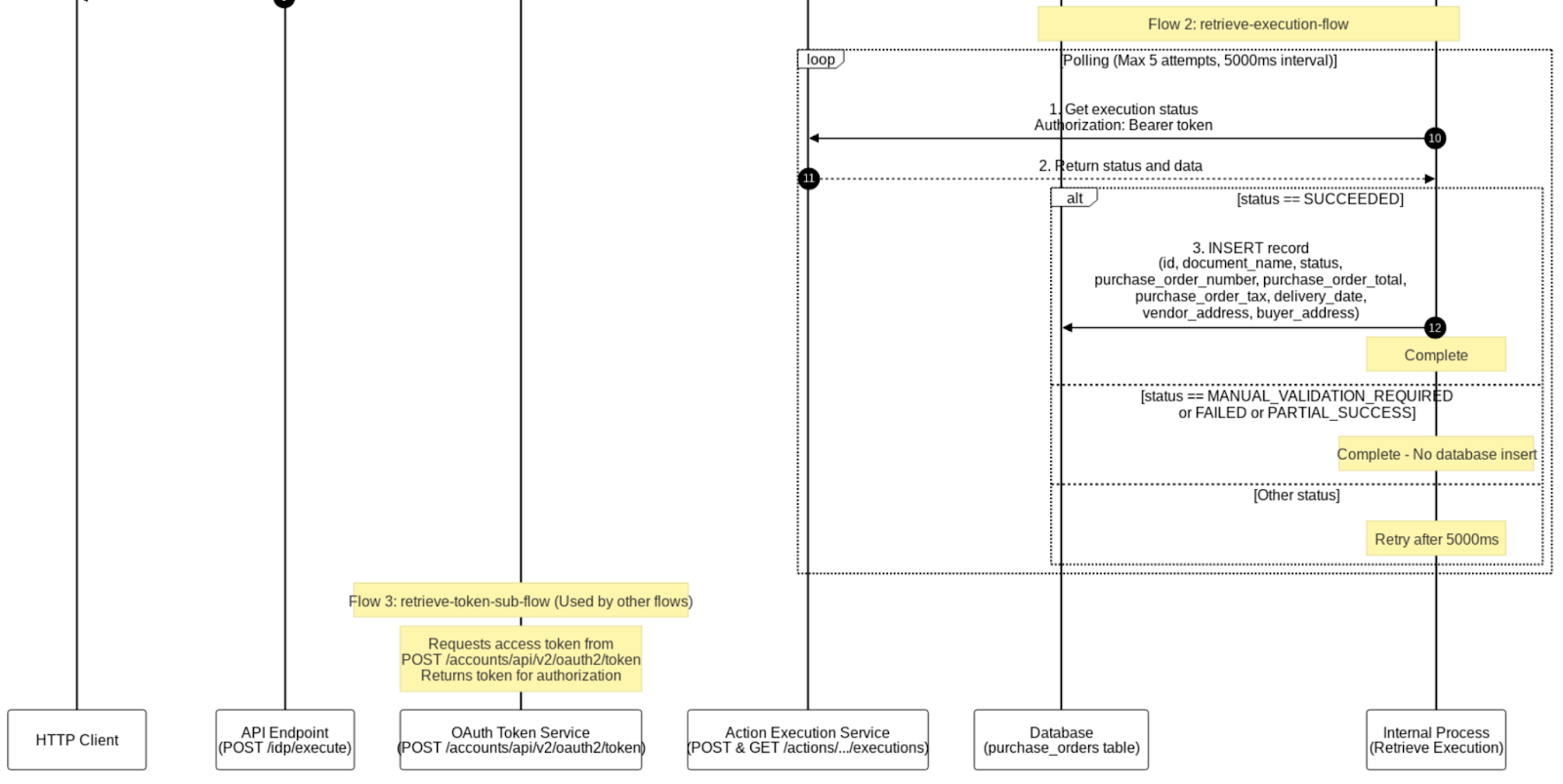
The second part of the sequence diagram captures the logic for inserting the retrieved execution data into the database and returning the response to the customer.
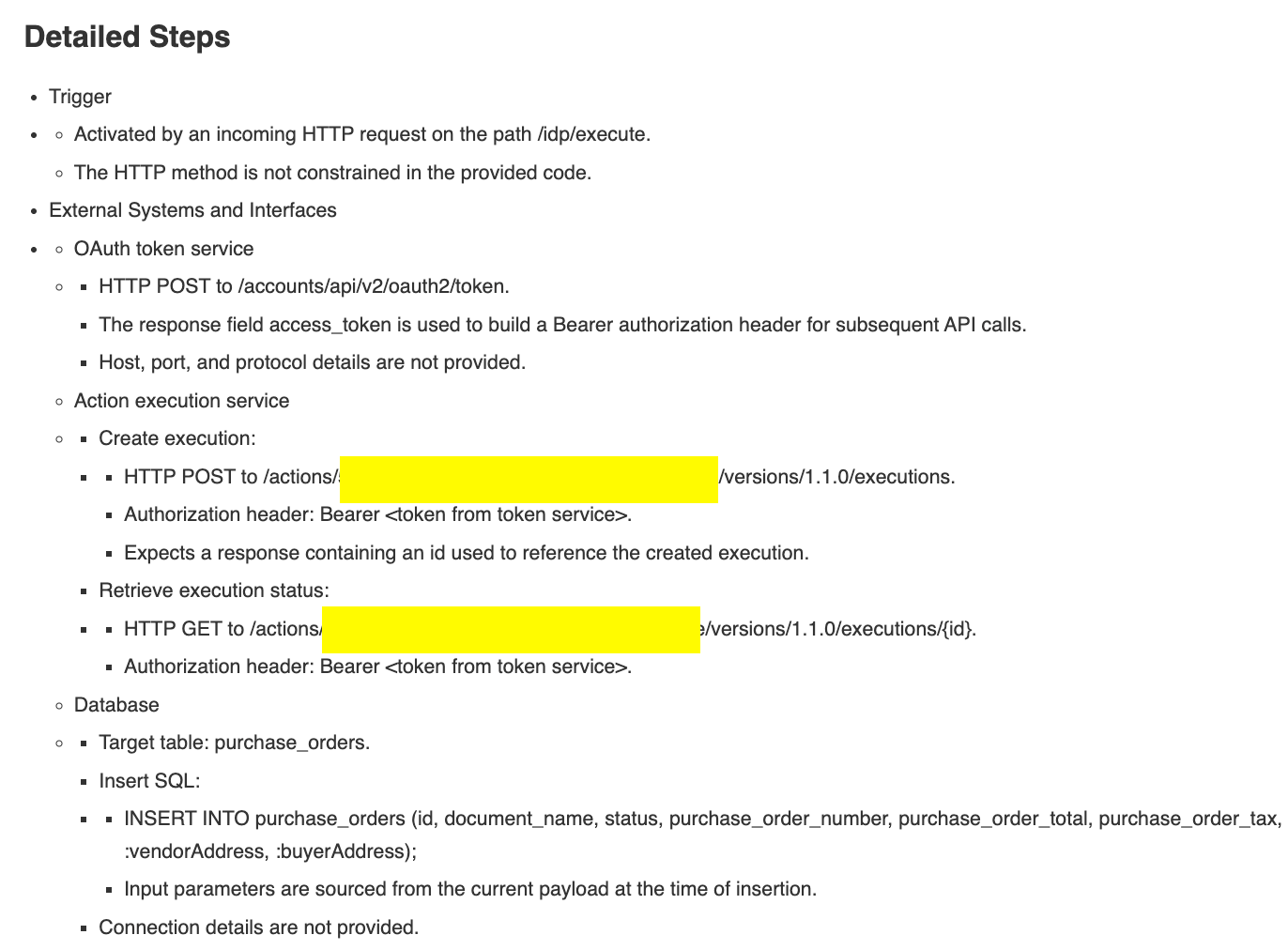
The tool also captures the detailed steps from start to end, explaining each processor’s action and input. This helps you document end-to-end flows with every minute detail captured, so new developers and teams can be onboarded easily without any issues.
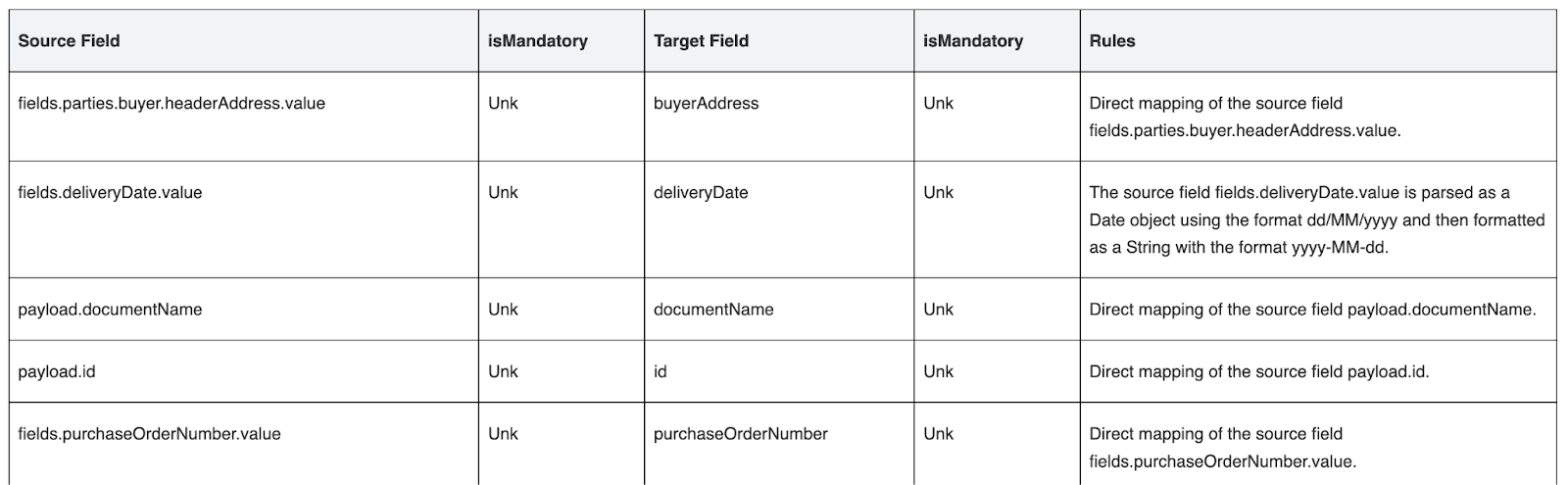
Furthermore, it also captures the mapping table for all transforms in the flows, along with the rules and business logic used for each field. This provides complete traceability, facilitates easier audits, and enables faster troubleshooting by clearly showing how source data is transformed into target fields.
{{banner-large-table="/banners"}}
Conclusion
MuleSoft Intelligent Document Processing (IDP) streamlines the process of extracting, validating, and integrating data from unstructured documents into enterprise systems. Combining AI-powered document understanding with MuleSoft’s integration capabilities eliminates manual data entry, accelerates workflows, and enhances data accuracy.
The complete lifecycle, from creating and publishing document actions to invoking them in Mule flows, showcases how IDP enables reusability, governance, and automation across projects. With proper model tuning, validation logic, and adherence to security best practices, teams can build a scalable document automation pipeline that seamlessly integrates with applications such as Salesforce, SAP, or database systems. As a next step, IDP can be extended with MuleSoft RPA for end-to-end document-driven automation or integrated with Composer to empower business users to trigger document workflows with minimal IT intervention.